Guides › Mac clipboard
How to copy text from an image on Mac
Updated 10 October 2026 · by Vistaar Studio
Short answer: open the image in Preview or Photos, hover over the words until the pointer becomes a text cursor, drag to select them, and press ⌘ C. Then paste anywhere with ⌘ V. The feature is called Live Text and it's built into macOS Monterey and later, on Apple Silicon and Intel Macs.
Live Text quietly turns text in pictures into real, selectable text: a phone photo of a whiteboard, a scanned receipt, a screenshot of an error message, a slide in a video. Here's how to use it in each place it works, a trick for grabbing text from anywhere on your screen, and what to try when your Mac refuses to select anything.
In Preview (photos, scans and screenshots)
- Double-click the image to open it in Preview (or Control-click › Open With › Preview).
- Move the pointer over the text. When it changes to a text cursor (the I-beam), drag across the words you want. To select everything, click in the text and press ⌘ A.
- Press ⌘ C, or Control-click the selection and choose Copy Text.
If dragging draws a box instead of selecting words, choose Tools › Text Selection and try again. Control-clicking a selection also offers Look Up, Translate and a web search. Phone numbers, email addresses and web links get a small down arrow you can click to call, email or open them.
In Photos
- Open the photo in the Photos app (double-click it so it fills the window).
- When Photos finds text, a Live Text button appears in the corner. Click it to highlight all the text, or simply drag across the words you need.
- Press ⌘ C.
This is the easiest way to get text out of photos you took on your iPhone: if they sync through iCloud Photos, they're already there.
Without opening anything: Quick Look
In the Finder, select an image and press Space. The Quick Look preview supports Live Text too: drag across the text and press ⌘ C. It's the fastest way to grab an address or a serial number from a picture someone sent you.
Images on websites (Safari)
In Safari you can select text inside most images on a web page just like normal text: drag across it, then ⌘ C. Handy for infographics, menus posted as pictures and slides embedded in articles. Other browsers may not support this; if yours doesn't, Control-click the image, save it, and open it in Preview.
From a screenshot
- Press ⇧ ⌘ 4 and drag a box around the text on screen.
- Click the thumbnail that appears in the corner, or open the saved screenshot from your desktop.
- Select the text and copy it.
This works for text you can't normally select: a locked PDF, a dialog box, a frame of a video call, a picture inside an app.
From a paused video
Since macOS Ventura, Live Text also works on paused videos in apps such as Photos, Quick Look and Safari. Pause on a frame where the text is large and sharp, drag across it, and Control-click › Copy. If an app doesn't support it, take a screenshot of the paused frame and use the screenshot steps above.
Grab text from anywhere on screen with a Shortcut
If you do this often, skip the screenshot file altogether. The free Shortcuts app (macOS Monterey and later) can do it in one step:
- Open Shortcuts and click +. Name it "Copy text from screen".
- Add Take Screenshot. Click Show More and change it from full screen to an interactive Custom selection.
- Add Extract Text from Image.
- Add Combine Text and set the separator to New Lines.
- Add Copy to Clipboard.
- In the details panel, tick Pin in Menu Bar, or add a keyboard shortcut.
Run it, drag a box over any text on your screen, and the words are on your clipboard. Some macOS versions have had bugs with the Take Screenshot action, so if it stops working after an update, check for a newer macOS release.
When Live Text won't select anything
- Is it switched on? Open System Settings › General › Language & Region and make sure Live Text is turned on.
- Is your Mac new enough? You need macOS Monterey (12) or later. Video frames need Ventura (13) or later.
- Is the language supported? Live Text reads many languages, including English, Chinese, French, German, Italian, Portuguese and Spanish. Apple keeps the current list on its macOS Feature Availability page.
- Is the text big and sharp enough? Tiny, blurry or heavily angled text often isn't recognised. Zoom in, or take a closer photo straight on.
- Handwriting is hit and miss. Neat print usually works; joined-up writing often doesn't.
- Is it a scanned PDF? Preview's Live Text works best on image files. If a PDF won't cooperate, take a screenshot of the page and copy from that.
Always check what you pasted. Text recognition can confuse similar characters, such as 0 and O or 1 and l, which matters for codes, passwords and account numbers.
Keep what you copy: Desk Buddy
We make this app, so read this part with that in mind. Once you start copying text out of images, you'll copy a lot, and the Mac clipboard only holds the last thing. Desk Buddy is a clipboard manager for Mac that keeps everything you copy, so the receipt total you grabbed this morning is still there this afternoon.
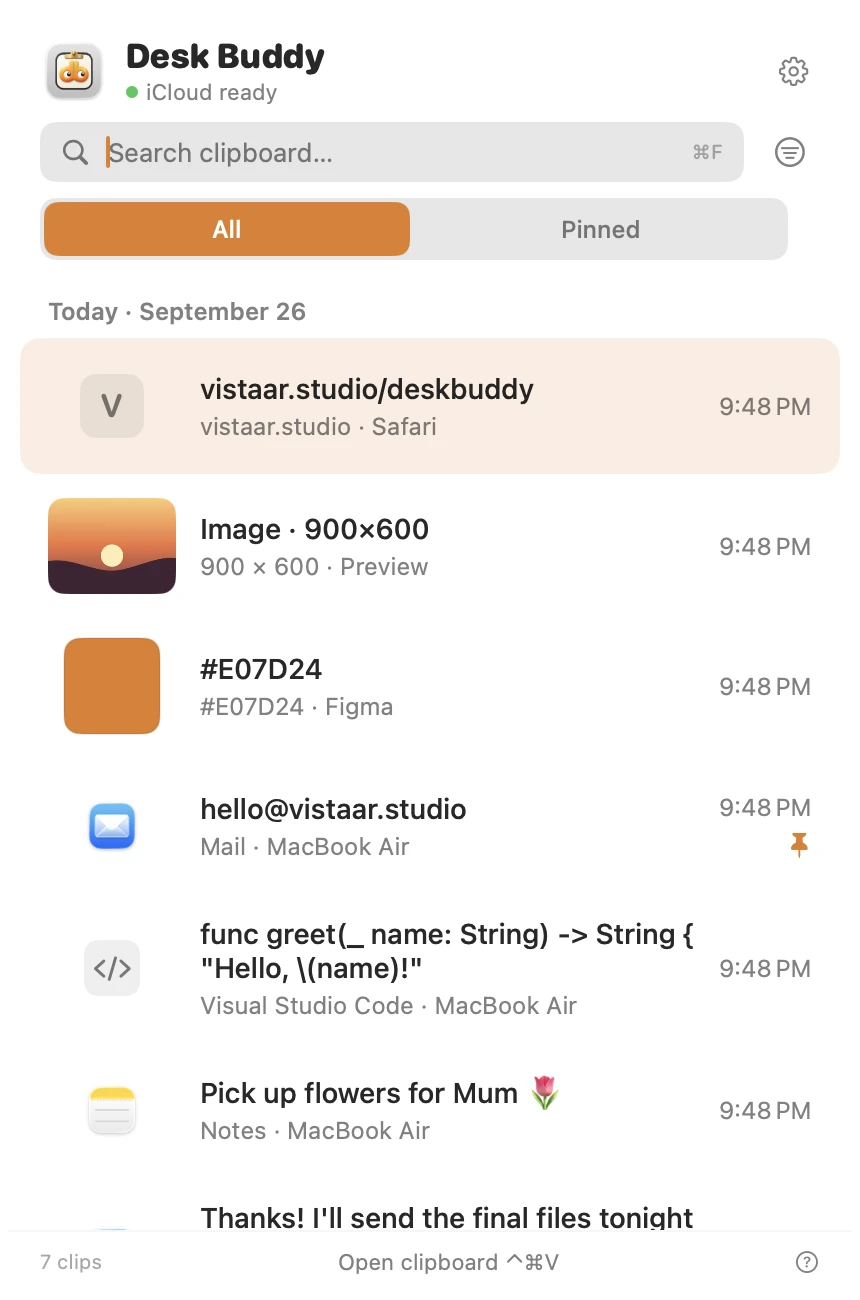
- Press ⌃ ⌘ V to open your history, then click a copy to paste it where you were typing.
- Keeps text, links, images, colours, code and files; search, pin and organise them into boards.
- Coming in the next update: Copy Text from Screen. Press ⌃ ⌘ 2, drag a box over anything on screen (a paused video, a PDF, a shared screen in a call, an error dialog) and the text goes straight onto your clipboard and into your history. It also reads QR codes and barcodes, runs on your Mac with Apple's Vision framework, and needs macOS 14 or later. Until that update ships, the Shortcut above does a similar job.
Desk Buddy is coming soon to the Mac App Store: a free download with a 7-day free trial, then a $9.99 in-app unlock. It needs macOS 14 or later. Meet Desk Buddy →
FAQ
How do I copy text from a picture on a Mac?
Open it in Preview or Photos, drag across the words and press ⌘ C. That's Live Text, built into macOS Monterey and later.
Why can't I select text in an image on my Mac?
Check System Settings › General › Language & Region › Live Text, and in Preview choose Tools › Text Selection. The text also has to be in a supported language and clear enough to read; zooming in helps.
How do I copy text from a screenshot on Mac?
Take it with ⇧ ⌘ 4, open it in Preview or Quick Look, select the text and copy.
Can I copy text from a video on Mac?
Yes, since macOS Ventura: pause the video in Photos, Quick Look or Safari, select the text in the frame and copy it.
Does Live Text work offline?
Yes. Recognition happens on your Mac. Translating or searching the text afterwards may need the internet.
Can I copy text from anywhere on the screen, not just image files?
Use a Shortcut: Take Screenshot (custom area) › Extract Text from Image › Combine Text › Copy to Clipboard, pinned to the menu bar.