Guides › Desktop
How to hide desktop icons on Mac
Updated 26 October 2026 · by Vistaar Studio
Short answer: open System Settings › Desktop & Dock. In the Desktop & Stage Manager section, next to Show items, untick On Desktop. Every file, folder and disk icon vanishes from the desktop at once. Nothing is deleted: the files are still in Finder's Desktop folder. Tick the box again to bring them back.
A cluttered desktop is fine until you share your screen in a meeting, record a tutorial, or take a screenshot for work. Then fifty files called "Screenshot 2026-…" and an invoice you'd rather nobody read are suddenly on show. Below are the built-in ways to hide them, how to get them back, and a few fixes for when icons disappear on their own.
1. Untick "On Desktop" in Desktop & Dock settings (best way)
- Choose Apple menu › System Settings, then click Desktop & Dock in the sidebar.
- Scroll to Desktop & Stage Manager.
- Next to Show items, untick On Desktop. The icons disappear immediately; you don't need to restart anything.
- To show them again, come back and tick On Desktop.
The second box, In Stage Manager, controls the same thing while Stage Manager is turned on. If you use Stage Manager, untick both. We checked these labels on macOS Tahoe 26.2, and Apple's current Mac User Guide (for macOS 27) describes the same Show Items setting.
While you're there, two nearby settings are worth a look:
- Show Widgets has its own On Desktop box. Untick it too if you want a completely bare desktop, with no weather or calendar widgets.
- Click wallpaper to show desktop: if it's set to Always, one stray click on the wallpaper slides all your windows away and shows the desktop. Set it to Only in Stage Manager to stop that.
2. Hide only the disk icons
Maybe your files are tidy but the desktop keeps showing your Mac's drive, a USB stick or a network share. Those icons have their own switches:
- Click the desktop (or a Finder window) so Finder is the active app.
- Choose Finder › Settings (⌘ ,) and click General.
- Untick the items you don't want on the desktop: Hard disks, External disks, CDs, DVDs, and iOS Devices, Connected servers.
The drives still appear in the Finder sidebar under Locations, so you can still open and eject them.
3. Terminal (older macOS, or if you like scripts)
If your Mac doesn't have the Show items setting, the long-standing Terminal method still works. It tells Finder not to draw the desktop at all. Open Terminal and run:
defaults write com.apple.finder CreateDesktop -bool false
killall Finder
Finder restarts, and the icons are gone. To bring them back:
defaults delete com.apple.finder CreateDesktop
killall Finder
Two notes. killall Finder closes any open Finder windows, so finish copying files first. And on a current Mac the checkbox in method 1 does the same job without Terminal, so use that if you have it. We didn't re-run this command on our macOS 26.2 test Mac, because the setting covers it.
Want it on a key? In the Shortcuts app, make a shortcut with a Run Shell Script action containing the first two lines, a second one with the "bring back" lines, and give each one a keyboard shortcut from the shortcut's details.
Hiding for a screen share? Try this first
Zoom, Google Meet and Microsoft Teams can share one window instead of your entire screen. Pick the window or browser tab you're presenting, and your desktop, notifications from other apps and the rest of your Dock never reach the call. It's the most reliable option, because nothing depends on you remembering to switch settings back afterwards.
If you do need to share the whole screen, hide the desktop items (method 1) and the widgets before the call, then turn them back on when you're done.
Hide or tidy? Other ways to calm a messy desktop
| What you want | Built-in way | Files hidden? |
|---|---|---|
| A clean screen for a call or recording | Desktop & Dock › Show items › untick On Desktop | Yes, all of them |
| Fewer icons, same files on the desktop | Click the desktop, then View › Use Stacks (⌃ ⌘ 0): files are piled by kind | No, grouped |
| Line the icons up neatly | View › Clean Up (or Clean Up By name, date, kind…) | No |
| Get everything off the desktop for good | Click the desktop, ⌘ A, then File › New Folder with Selection | Moved into one folder |
| See the desktop behind your windows | The Show Desktop shortcut or a hot corner (this reveals icons, it doesn't hide them) | No |
Most desktop clutter is screenshots. If that's your problem, change where they're saved so they stop landing on the desktop: see how to change where screenshots are saved on Mac.
"My desktop icons disappeared": quick checks
- Check Show items first. Desktop & Dock › Show items › On Desktop may have been switched off, by you or someone borrowing the Mac.
- Look in Finder. Open a Finder window and click Desktop in the sidebar (or press ⇧ ⌘ D). If the files are there, they're only hidden.
- Only disks missing? Check Finder › Settings › General (method 2).
- Someone ran the Terminal command? Run the "bring back" lines from method 3.
- Files missing from Finder's Desktop too? If you turned iCloud Drive's Desktop & Documents Folders on or off, the files may now be in iCloud Drive › Desktop. Look there before assuming anything is lost.
One click instead of a settings trip: Desk Buddy
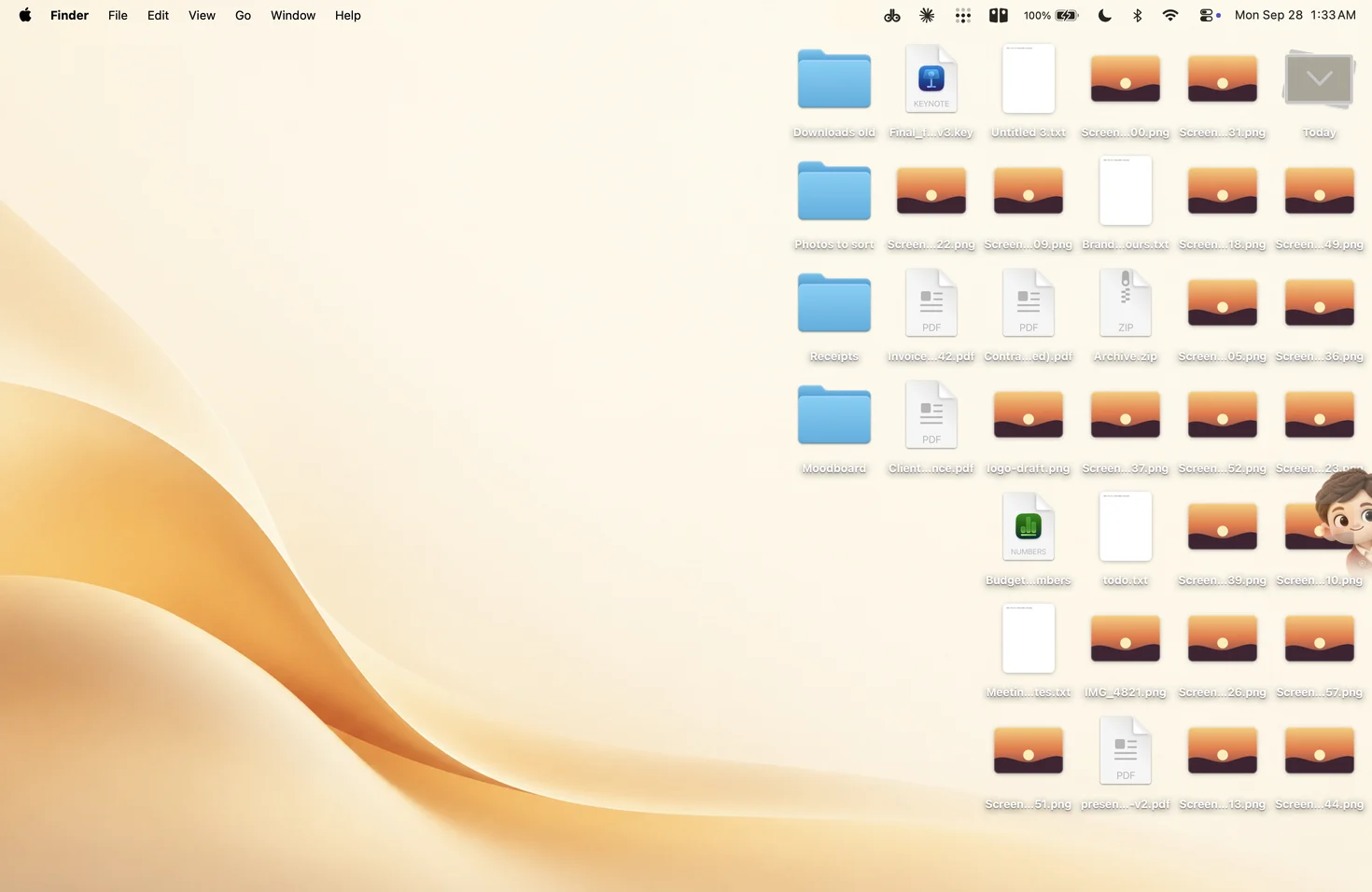
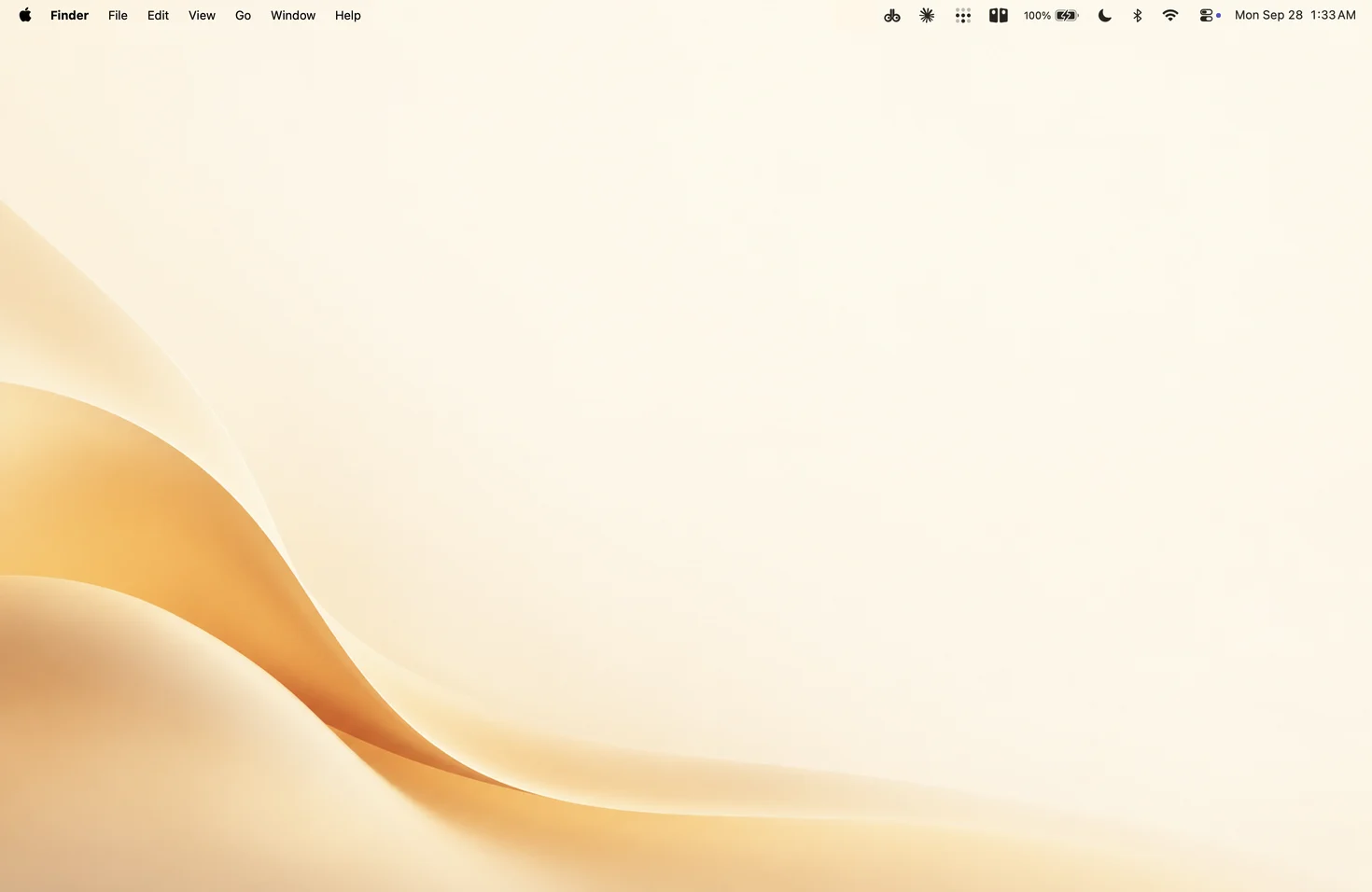
We make this app, so weigh this part with that in mind. If you present often, switching settings before and after every call gets old. Desk Buddy Complete has a Presentation Mode: one click from the menu bar hides every desktop icon (and Buddy, the little character who lives at the edge of your screen), and another click brings it all back. The screenshots above are exactly that: before and after one click.
The same app keeps your clipboard history (text, links, images, colours, code and files), and its one-click Screenshot tidy-up files your screenshots into one folder, so there's less to hide in the first place.
Presentation Mode is part of Desk Buddy Complete, available now from vistaar.studio: $5 for 1 Mac (₹499 in India), paid up front, instant download. The Mac App Store edition, coming soon, doesn't include Presentation Mode or Screenshot tidy-up. Desk Buddy needs macOS 14 or later. Meet Desk Buddy →
FAQ
How do I hide all desktop icons on a Mac?
System Settings › Desktop & Dock, then next to Show items, untick On Desktop. Tick it again to bring them back.
Does hiding desktop icons delete my files?
No. They stay in your Desktop folder. In Finder, click Desktop in the sidebar or press ⇧ ⌘ D to open them.
Why did my desktop icons disappear on Mac?
Most often On Desktop was switched off in Desktop & Dock settings, or the CreateDesktop Terminal command was used. If only disks are gone, check Finder's General settings.
Is there a keyboard shortcut to hide desktop icons?
Not built in. Show Desktop does the opposite (it moves windows away). Make a Shortcuts shortcut with the Terminal lines and give it a key combination.
How do I hide desktop icons when sharing my screen?
Share one window instead of the whole screen. If you must share everything, untick On Desktop before the call.
How do I stop icons appearing when I click the wallpaper?
Set Click wallpaper to show desktop to Only in Stage Manager in Desktop & Dock settings.