Guides › Clipboard
How to clear the clipboard on Mac
Updated 25 October 2026 · by Vistaar Studio
Short answer: open Terminal and run pbcopy < /dev/null. That empties the clipboard, so ⌘ V pastes nothing. No Terminal? Copy a single space instead: the Mac clipboard holds one thing at a time, so the space replaces whatever was there. On macOS Tahoe, also clear Spotlight's clipboard history: ⌘ Space, ⌘ 4, then More › Clear History.
People usually want this right after copying something private: a password, a bank account number, a one-time code, a message they'd rather not paste into the wrong chat during a screen share. On a Mac there are two places that copy can live. The clipboard itself holds your latest copy. On macOS Tahoe 26 and later, Spotlight's clipboard history may also keep a list of recent copies. Clearing one doesn't clear the other, so here's how to deal with both.
Which one do you need to clear?
| What you want | Do this |
|---|---|
| Make ⌘ V paste nothing | pbcopy < /dev/null in Terminal, or copy a space |
| Remove copies from the Spotlight list (Tahoe) | Spotlight › ⌘ 4 › More › Clear History |
| Stop the Mac keeping a list at all | System Settings › Spotlight › turn off Results from Clipboard |
| Keep the list, but for less time | System Settings › Spotlight › choose 30 minutes instead of 8 hours or 7 days |
| A clipboard manager app | Use that app's own delete or clear option |
1. Empty the current clipboard with Terminal (cleanest)
- Open Terminal (press ⌘ Space, type Terminal, press Return).
- Type
pbcopy < /dev/nulland press Return. Nothing appears, which is what you want. - Click in any text field and press ⌘ V. Nothing should paste.
pbcopy puts whatever it's given onto the clipboard, and /dev/null is an empty file, so the clipboard ends up empty. We tested it on macOS 26.2: after copying the word "test" and running the command, pbpaste | wc -c reported 0 characters left.
Make it a one-click shortcut
If you clear the clipboard often, turn the command into a shortcut:
- Open the Shortcuts app and click + to make a new shortcut. Name it "Clear Clipboard".
- Search the actions for Run Shell Script and add it. Replace the sample text with
pbcopy < /dev/null. - Open the shortcut's details (the i button) and use Add Keyboard Shortcut to give it a key combination, or pin it in the menu bar.
The first time it runs, Shortcuts may ask you to allow scripts in its settings (Shortcuts › Settings › Advanced › Allow Running Scripts).
2. Copy something harmless (no Terminal needed)
The Mac clipboard only holds one item. Copying anything new pushes the old copy out. So type a space in any text field, select it and press ⌘ C. Your password is gone from the clipboard, and the worst you can paste by accident is a space.
This is also the best fix when you're about to share your screen and you're not sure what you copied last.
3. Restart or log out
Restarting the Mac or logging out of your account empties the current clipboard. It's slower, but useful on a shared or borrowed Mac when you're finished. On Tahoe, still check Spotlight's clipboard history (next section), which keeps copies for the time you set.
4. Clear Spotlight's clipboard history (macOS Tahoe 26 and later)
On macOS Tahoe, Spotlight can keep a searchable list of what you've copied: text, images and files. If you allowed it, clearing the clipboard doesn't remove anything from that list.
Clear the whole list
- Press ⌘ Space to open Spotlight, then ⌘ 4 to show the Clipboard.
- Click the More button to the right of the search field.
- Choose Clear History.
You can do the same in System Settings › Spotlight: near the bottom, next to Results from Clipboard, click Clear Clipboard History. macOS asks "Clear clipboard history from Spotlight?" and explains it removes the history on this Mac. Click Clear.
Remove just one copy
In the Clipboard list, Control-click (right-click) the copy you want gone and choose the delete option from the menu. The rest of your history stays.
Keep it for less time, or turn it off
Since macOS Tahoe 26.1, System Settings › Spotlight lets you choose how long the history is kept: 30 minutes, 8 hours or 7 days. If you copy sensitive things all day, 30 minutes is a good middle ground. To stop it completely, turn off Results from Clipboard. Your normal copy and paste keeps working either way.
Want the full tour of the history itself (searching it, what it saves and skips)? See how to see clipboard history on Mac.
Universal Clipboard: your iPhone and other Macs
If Handoff is on, your latest copy can also be pasted on your iPhone, iPad or another Mac signed in to the same Apple Account. Apple says that copy "remains there briefly, or until you replace it by copying something else on either device." So the moment you clear or replace the clipboard on your Mac, the shared copy is replaced too. If you never use it, you can switch Handoff off in System Settings › General › AirDrop & Handoff. More in how to sync the clipboard between Macs.
Which apps can read your clipboard?
An app always sees what you paste into it. Reading the clipboard without you pasting is different, and newer macOS versions control it. On macOS 26, System Settings › Privacy & Security has a Paste from Other Apps list showing apps you've allowed to read the clipboard at any time. When an app tries without permission, macOS can show a prompt that an app "is trying to access the pasteboard", with Allow Paste and Don't Allow Paste buttons. If you see that prompt from an app you don't recognise, choose Don't Allow Paste.
A clipboard manager that skips the sensitive stuff: Desk Buddy
We make this app, so read this part with that in mind. If you use any clipboard manager, the copies you most want gone are passwords. Desk Buddy leaves password managers out of its history, and never saves copies that other apps mark as private. So a password copied from your password manager doesn't sit in a list for anyone to scroll past later. Everything else you copy (text, links, images, colours, code and files) is kept, so you can find it again.
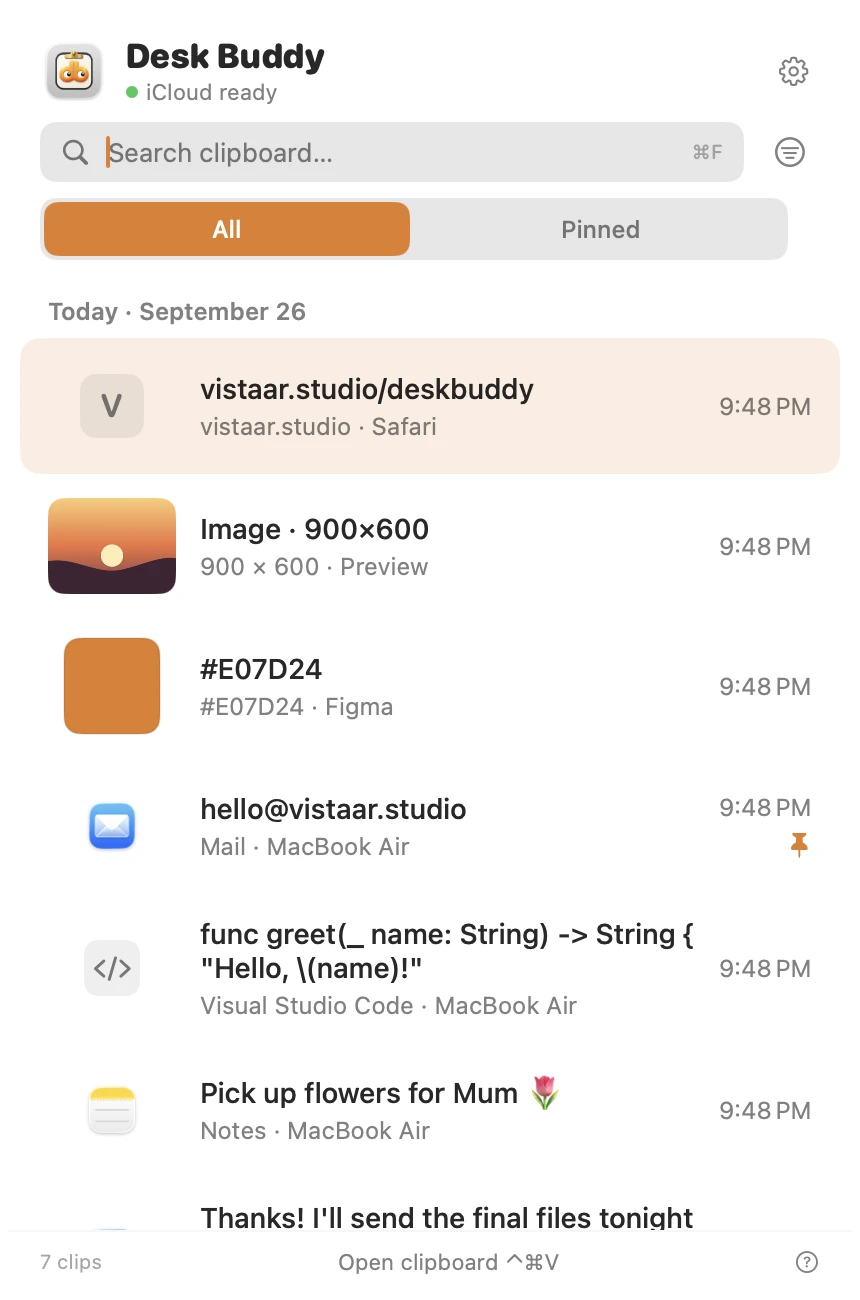
- Open the history with ⌃ ⌘ V, the menu-bar icon, or by clicking Buddy; click a copy to paste it where you were typing.
- Search, pin the things you reuse, and group them into boards.
- See which website or app each copy came from.
- Optional sync of your history between your Macs through your own iCloud.
Desk Buddy is available now from vistaar.studio as Desk Buddy Complete: $5 for 1 Mac (₹499 in India), paid up front, instant download. A Mac App Store edition is coming soon: a free download with a 7-day free trial, then a one-time $9.99 unlock. It needs macOS 14 or later. Meet Desk Buddy →
Good habits for sensitive copies
- Paste, then replace. After pasting a password or account number, copy something harmless straight away.
- Before a screen share, clear the clipboard and close Spotlight's clipboard list, so nothing private pops up.
- Use your password manager's autofill instead of copy and paste where you can. Nothing touches the clipboard that way.
- On a shared Mac, set Spotlight's clipboard history to 30 minutes, or turn it off.
FAQ
How do I clear the clipboard on a Mac?
Run pbcopy < /dev/null in Terminal, or copy a single space. The new copy replaces the old one.
Is there a keyboard shortcut to clear the clipboard?
Not built in. Copy a space with ⌘ C, or make the Shortcuts shortcut above and give it a key combination.
How do I clear clipboard history on macOS Tahoe?
⌘ Space, ⌘ 4, then More › Clear History. Or System Settings › Spotlight › Clear Clipboard History.
Does restarting a Mac clear the clipboard?
Yes, the current clipboard is emptied. Spotlight's clipboard history on Tahoe is separate, so clear that too if it matters.
Does clearing the clipboard on my Mac clear it on my iPhone?
Universal Clipboard only shares your latest copy briefly, and copying something else on either device replaces it.
Can apps read my clipboard on Mac?
They see what you paste. For reading at other times, check System Settings › Privacy & Security › Paste from Other Apps.