Guides › Clipboard
How to save and paste frequently used text on Mac
Updated 24 October 2026 · by Vistaar Studio
Short answer: open System Settings › Keyboard and click Text Replacements… (under Text Input). Click +, type a short code in Replace (say @@) and the full text in With (your email address). From then on, typing @@ and a space turns into your email in most apps. It's free, built in, and syncs to your iPhone through iCloud.
Most of us type the same few things all day: an email address, a home or office address, a bank-transfer note, "Thanks, I'll get back to you by end of day", a Zoom link. Retyping them is slow and invites typos. macOS has three good built-in ways to keep them ready, and each suits a different kind of text. Here's which to use when.
Which method fits your text?
| What you want to save | Best built-in way | How you paste it |
|---|---|---|
| Short phrases: email, phone, address, sign-off | Text Replacements | Type a code, e.g. @@ |
| A longer block you paste often (a template reply, a bio) | Shortcuts + keyboard shortcut | Press your shortcut, then ⌘ V |
| A handful of things for one project | A snippets note in Notes | Copy from the note, paste |
| Something you copied earlier today | Spotlight clipboard history (macOS Tahoe) | ⌘ Space, then ⌘ 4 |
1. Text Replacements: type a code, get the full text
- Choose Apple menu › System Settings and click Keyboard in the sidebar (scroll down if you don't see it).
- Under Text Input, click Text Replacements….
- Click the + button. In Replace, type your code. In With, type or paste the full phrase.
- Click Add, then Done.
- Try it: in Notes or Mail, type the code followed by a space or a full stop. It swaps to the phrase.
You can also get there from inside an app: Edit › Substitutions › Show Substitutions, then click Text Settings.
Pick codes you'd never type by accident
The replacement fires whenever you type the code as a word, so a real word like "addr" or "sig" will trip you up sooner or later. A double symbol or a prefix is safer:
| Replace | With |
|---|---|
@@ | you@example.com |
;addr | Your full postal address |
;ph | Your phone number with country code |
;ty | Thanks for your message. I'll get back to you by end of day. |
;zoom | Your personal meeting link |
A semicolon prefix works well because you almost never type a semicolon straight before letters, and it's on the home row.
It also fixes typos
The same list doubles as a personal autocorrect. If you always type "recieve" or a colleague's name wrong, add the mistake in Replace and the right spelling in With.
On your iPhone and other Macs
If iCloud Drive is set up on your devices and they use the same Apple Account, replacements you add on the Mac appear on your iPhone and iPad too (and the other way round). That makes it a good home for phrases you type on your phone as well.
To back them up or copy them to a Mac with a different Apple Account: open the Text Replacements window, select the ones you want (Edit › Select All for all), and drag them to the desktop. You get a file called property list.plist. Drag that file into the Text Replacements window on the other Mac. On recent macOS versions the window also has Import… and Export… buttons that do the same job.
When text replacements don't work
- Check the app's Substitutions menu. In the app you're typing in, open Edit › Substitutions and make sure Text Replacement has a tick.
- Some apps ignore them. Apple says text replacements aren't available in every app. Browser-based tools and some cross-platform chat and coding apps are the usual ones. Use method 2 or 3 there.
- Nothing happens after the code. The swap happens when you type a space or punctuation after the code, not while you're still typing it.
- Fix text you already typed. Select it, choose Edit › Substitutions › Show Substitutions, make sure Text Replacement is ticked and click Replace in Selection.
2. Shortcuts: a keyboard shortcut for a longer block
Text Replacements are built for short phrases. For a longer template, such as a client reply, a product description or a bio, a tiny shortcut is neater. It copies the text, and you paste with ⌘ V.
- Open the Shortcuts app and click + to make a new shortcut. Name it, for example "Paste client reply".
- Search the actions for Text and add it. Type or paste your full template into the box. Line breaks are fine.
- Add the Copy to Clipboard action underneath.
- Open the shortcut's details (the ⓘ button) and click Add Keyboard Shortcut. Press a combination you don't use elsewhere, such as Control ⌥ 1.
- Now press that combination anywhere, then ⌘ V.
One thing to know: this replaces whatever was on your clipboard. If you'd copied something you still need, paste that first.
3. A snippets note: simple and visible
Sometimes the easiest thing is a pinned note called "Snippets" in Notes, with each piece of text on its own line: bank details for invoices, a delivery address, the Wi-Fi password for guests. Double-click or triple-click to select a line, ⌘ C, and paste. It's slower than a code, but you can see everything at once, and it's good for things you only need for a week or two. Pin it (Control-click the note › Pin Note) so it stays at the top.
If the note holds anything sensitive, like account numbers, you can lock it in Notes. Don't put passwords there; that's what the Passwords app is for.
4. Clipboard history: for things you copied earlier
On macOS Tahoe, Spotlight keeps a short clipboard history. Press ⌘ Space, then ⌘ 4, to see recent copies and click one to use it again. It's handy for "that address I copied this morning", but items age out after the time you set in System Settings › Spotlight, so it's not a place to keep text for good. Our guide to clipboard history on Mac covers it in detail.
Keep your snippets one click away: Desk Buddy (our app)
We make Desk Buddy, so read this with that in mind. For short phrases, Text Replacements are hard to beat, and they're free. Desk Buddy helps in the gaps: apps that ignore text replacements, longer blocks you don't want to set up as shortcuts, and things you copied once and want to keep. It's a clipboard manager: everything you copy (text, links, images, colours, code and files) goes into a history you can search, and anything you use often can be pinned.
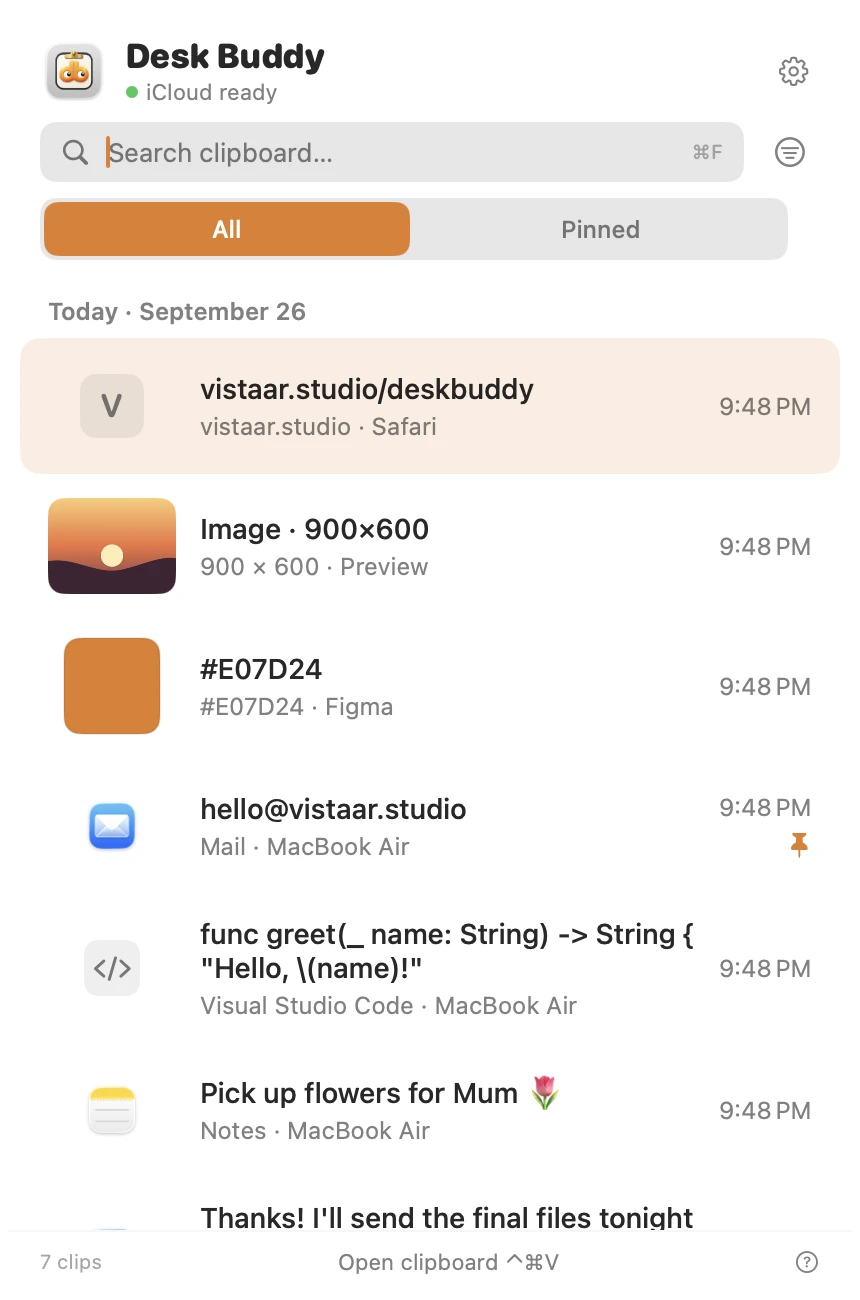
- Copy your template once and pin it. It stays in the Pinned tab instead of scrolling away.
- Press Control ⌘ V (or click the menu-bar icon, or Buddy at the edge of your screen), then click a copy to paste it where you were typing. It doesn't depend on the app supporting text replacements.
- Group a project's snippets, links and images into a board.
- Optional sync of the history between your Macs through your own iCloud.
- Copies from password managers are left out of the history.
Desk Buddy is available now from vistaar.studio as Desk Buddy Complete: $5 for 1 Mac (₹499 in India), paid up front, instant download. A Mac App Store edition is coming soon: a free download with a 7-day free trial, then a one-time $9.99 unlock. It needs macOS 14 or later. Meet Desk Buddy →
FAQ
Does Mac have a built-in text expander?
Yes: System Settings › Keyboard › Text Replacements…. Type a short code and macOS swaps in the full phrase, in most apps.
Why are my text replacements not working?
Check Edit › Substitutions › Text Replacement is ticked in that app, and type a space after the code. Some apps don't support them at all.
Do text replacements sync to my iPhone?
Yes, with iCloud Drive set up on both and the same Apple Account.
How do I back up or move my text replacements to another Mac?
Select them in the Text Replacements window and drag them to the desktop to get property list.plist, then drag that file into the window on the other Mac.
What's a good code to use?
Something you'd never type by accident: @@, ;addr, ;ty. Avoid real words.
Can I save longer text or text with formatting?
Text Replacements are for short phrases. For longer blocks, use a Shortcuts shortcut that copies the text, a snippets note, or pin it in a clipboard manager.