Guides › Clipboard on Mac
How to copy and paste multiple items at once on Mac
Updated 19 October 2026 · by Vistaar Studio
Short answer: the Mac clipboard holds one item at a time, so every ⌘ C replaces the last. To collect several things and paste them later: on macOS Tahoe press ⌘ Space then ⌘ 4 to pick earlier text copies from Spotlight's clipboard history; on any macOS, drag selected text to the desktop to save it as a text clipping, or keep a scratch note. For images, files and links as well as text, use a clipboard manager.
It's a familiar annoyance: you're filling in a form or writing an email and need a name, an address, an order number and a link from four different places. Copy one, switch, paste, switch back, copy the next. Here are the ways to break that loop, starting with what's already on your Mac.
1. Spotlight clipboard history (macOS Tahoe)
macOS Tahoe added a clipboard history to Spotlight. Copy the things you need one after another as normal, then go to where you want to paste:
- Press ⌘ Space to open Spotlight, then ⌘ 4 for the clipboard view.
- Pick the copy you want and press Return to paste it.
- Repeat for the next one.
The limits matter for this job: it keeps text (without formatting), images and copied files, copies last 8 hours by default (from macOS 26.1 you can choose 30 minutes, 8 hours or 7 days in System Settings › Spotlight), and you paste one item per trip to Spotlight. Our clipboard history guide covers the settings and what it leaves out.
2. Text clippings: drag text to the desktop
This one has been in macOS for decades and works on every version. It's the closest thing to a built-in multi-clipboard:
- Select some text in an app (Safari, Notes, Mail, Pages, TextEdit…).
- Drag the selection onto the desktop or into a Finder folder. macOS saves it as a small clipping file named after the first words.
- Do the same for each piece you need.
- Later, drag a clipping into a document or text field to paste what's in it. Double-click a clipping to preview it.
Clippings stay until you delete them, so they're handy for things you paste every few days. To keep the desktop tidy, make a folder called "Clippings" and drag them there instead. Not every app accepts dropped clippings, so test the one you use.
3. A second clipboard: Control-K and Control-Y
macOS text fields borrow a couple of keys from the Emacs editor. In Apple's own apps such as TextEdit, Notes and Mail:
- Control K cuts everything from the cursor to the end of the line into a separate kill buffer.
- Control Y pastes ("yanks") it back wherever the cursor is.
The kill buffer is separate from the normal clipboard, so you can hold one thing there and a different thing on ⌘ C. It only cuts (not copies), it works on text only, and many non-Apple apps ignore it, so think of it as a neat trick for moving a line around while your main clipboard holds something else.
4. Collect everything in a scratch note
The low-tech method works everywhere: open a new note in Notes (or a TextEdit window, or a Stickies note), and paste each item into it as you go. When you're done, you have everything in one place to copy from, in order, and it's still there tomorrow.
Two tips: paste with ⌥ ⇧ ⌘ V (Paste and Match Style) to drop the formatting from web pages (more in how to paste without formatting on Mac), and keep the note pinned in Notes so you can find it next time.
5. Copying many files at once in the Finder
Files are the one case where a single copy can hold many items:
- Select several files: ⌘-click each one, ⇧-click to select a range in list view, or ⌘ A for everything in the folder.
- Press ⌘ C, open the destination and press ⌘ V to copy them, or ⌥ ⌘ V to move them (more in how to cut and paste files on Mac).
- Need their locations instead? With the files selected, ⌥ ⌘ C copies their paths as text, one per line.
6. Use a clipboard manager
If you do this every day, a clipboard manager is the real fix: it remembers everything you copy (text, links, images, files), so you copy freely and pick what you need later. Here's how the options compare for collecting several items:
| Method | Text | Images / files | Keeps it for | macOS |
|---|---|---|---|---|
| Spotlight clipboard history | Yes (plain) | Yes | 8 h default (up to 7 days) | Tahoe (26) |
| Text clippings | Yes | No (text only) | Until deleted | All |
| Control-K / Control-Y | One cut | No | Until the next Control-K | All |
| Scratch note | Yes | Images can be pasted into Notes | Until deleted | All |
| Clipboard manager | Yes | Depends on the app | Depends on the app | Depends on the app |
We compared Maccy, Paste, Raycast, Alfred and others in the best clipboard manager for Mac. Below is the one we make.
Desk Buddy
Desk Buddy is our clipboard manager for Mac, so read this part knowing that. It keeps a history of what you copy: text, links, images, colours, code and files. When you're ready to paste, press Control ⌘ V (or click the menu-bar icon, or Buddy, the little character at the edge of your screen) and click the copy you want; it pastes where you were typing.
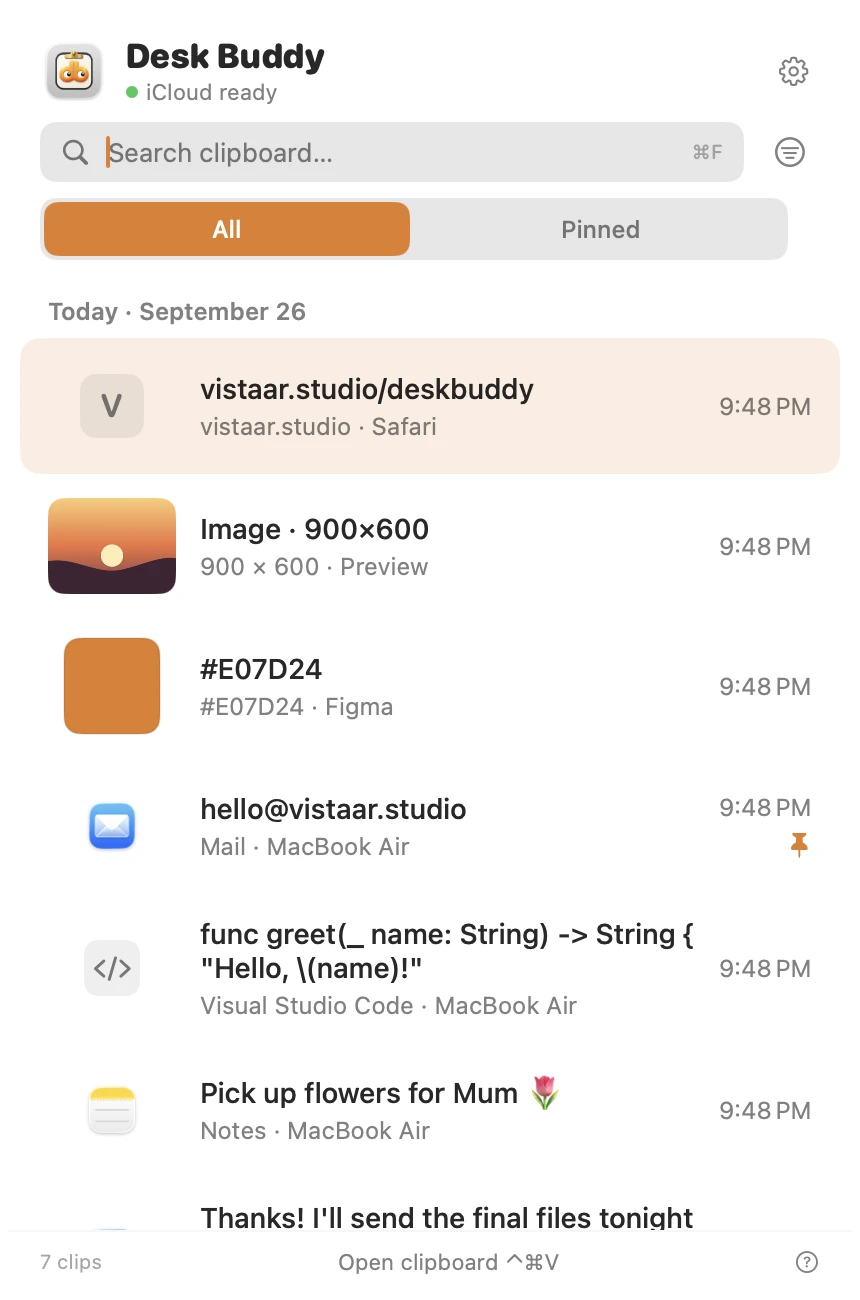
- Search the history, and pin things you paste often, like your address or a standard reply.
- Boards group copies for one job, such as everything for a form or a client.
- Each copy shows the website or app it came from.
- Password managers are left out of history, and copies other apps mark as private are never saved.
- Optional sync of your history between your Macs through your own iCloud.
Desk Buddy is available now from vistaar.studio as Desk Buddy Complete: $5 for 1 Mac (₹499 in India), paid up front, instant download. A Mac App Store edition is coming soon: a free download with a 7-day free trial, then a one-time $9.99 unlock. Meet Desk Buddy →
Which should you use?
- A few bits of text, right now, on Tahoe: Spotlight's clipboard history.
- Snippets you'll need again next week: text clippings or a pinned note.
- A batch of files: Finder multi-select, then one copy.
- All day, every day, with images and links too: a clipboard manager.
FAQ
Can a Mac copy more than one thing at a time?
The clipboard holds one copy; each ⌘ C replaces the last. Several files can be copied together from the Finder, and Tahoe's Spotlight keeps a short text history. For separate pieces of text, images or links, use clippings, a scratch note or a clipboard manager.
How do I paste something I copied earlier on a Mac?
On macOS Tahoe, press ⌘ Space then ⌘ 4 and pick it. Older versions have no built-in history, so you need a clipboard manager.
Is there a second clipboard on a Mac?
In Apple's text apps, Control K cuts to the end of the line into a separate kill buffer and Control Y pastes it. It doesn't touch the normal clipboard.
What are text clippings on a Mac?
Drag selected text onto the desktop and macOS saves it as a clipping file. Drag the clipping into a document later to paste it.
How do I copy multiple files at once on a Mac?
⌘-click the files in the Finder, press ⌘ C, then ⌘ V in the destination (or ⌥ ⌘ V to move them).
Does Spotlight clipboard history save images?
Yes. On macOS Tahoe it keeps images (as PNGs) and copied files as well as text, for 8 hours by default (up to 7 days). It has no pinning or boards; for those, use a clipboard manager.