Guides › Clipboard on Mac
How to paste without formatting on Mac
Updated 17 October 2026 · by Vistaar Studio
Short answer: press ⌥ ⇧ ⌘ V (Option-Shift-Command-V) instead of ⌘ V. That's Paste and Match Style: the text arrives in the font, size and colour of the document you're pasting into, without the bold, links and colours of the page you copied from. It's also in the Edit menu. Google Docs uses ⌘ ⇧ V, and Word calls it Paste and Match Formatting.
You copy a sentence from a website, paste it into an email, and it lands in a different font, a strange size and a grey background. Here's how to stop that, once or for good.
1. Paste and Match Style (one-off)
In most Mac apps (Mail, Notes, Pages, TextEdit, Keynote, Safari text fields, and many others):
- Copy the text as usual with ⌘ C.
- Click where you want it.
- Press ⌥ ⇧ ⌘ V, or choose Edit › Paste and Match Style.
Apple describes it simply: the pasted item takes on the style of the surrounding content. If the shortcut does nothing, look in the app's Edit menu. That shows you whether the app has the command and what its shortcut is.
2. Make ⌘ V always paste without formatting
If you almost never want the formatting, you can give Paste and Match Style the normal paste shortcut across your Mac:
- Open System Settings › Keyboard and click Keyboard Shortcuts…
- Choose App Shortcuts in the sidebar and click +.
- Leave Application set to All Applications.
- In Menu title, type
Paste and Match Styleexactly as it appears in the Edit menu (same capitals, same spaces). - Click the Keyboard shortcut box, press ⌘ V, then click Done.
Now ⌘ V pastes plain-looking text in every app that has that menu item. Two things to know:
- To keep a way to paste with formatting, add a second App Shortcut with the menu title
Pasteand give it ⌥ ⇧ ⌘ V, so the two swap places. - It only works where the menu item is named exactly "Paste and Match Style". In other apps ⌘ V keeps behaving normally. You can add extra App Shortcuts for a specific app with its own wording, such as Word's "Paste and Match Formatting".
3. The shortcut in popular apps
Not every app uses Apple's name or shortcut. Check the Edit menu if yours isn't listed:
| App | Paste without formatting |
|---|---|
| Mail, Notes, Pages, TextEdit, Keynote | ⌥ ⇧ ⌘ V · Edit › Paste and Match Style |
| Safari and Chrome (text fields) | ⌥ ⇧ ⌘ V · Edit › Paste and Match Style |
| Google Docs | ⌘ ⇧ V · Edit › Paste without formatting |
| Microsoft Word | Edit › Paste and Match Formatting, or the Paste Options button › Keep Text Only |
| Terminal, code editors, plain-text fields | Already plain text: a normal ⌘ V |
4. Strip the formatting from the clipboard itself
Sometimes you want to clean the copy once and then paste it in several places, or the app has no match-style option at all. Two ways:
The Terminal one-liner
Open Terminal (in Applications › Utilities) and run:
pbpaste | pbcopypbpaste reads the clipboard as plain text and pbcopy puts that text back, replacing the formatted version. We tested it on macOS Tahoe 26.2: a copy holding rich text (bold, coloured) came back as plain text only, and a normal ⌘ V then pasted it with no formatting. It works for text only; if you copied an image, there's no text to keep.
Want it on a key? In the Shortcuts app, make a shortcut with a single Run Shell Script action containing pbpaste | pbcopy, then add a keyboard shortcut in its details. Run it after copying, then paste normally.
The TextEdit route
Open TextEdit, create a new document and choose Format › Make Plain Text (⇧ ⌘ T). Paste into it, then select all and copy again. A plain-text TextEdit window can't hold formatting, so what you copy back out is clean. It's slower, but handy when you want to tidy the text before you paste it anywhere.
Why does pasted text keep its formatting?
When you copy from a web page or a document, the app usually puts several versions on the clipboard at once: a rich one (fonts, colours, links, sometimes a background) and a plain-text one. A normal paste takes the richest version the destination understands. Paste and Match Style asks for the text alone and lets the document decide how it looks. That's also why the same copy can paste "clean" into Terminal and "messy" into Mail.
If you paste the same things over and over
A lot of formatting trouble comes from copying the same address, reply or link again and again from old emails and web pages. A clipboard manager keeps those copies in one place so you can pick them again later; use ⌥ ⇧ ⌘ V in the destination if it still matters how they look.
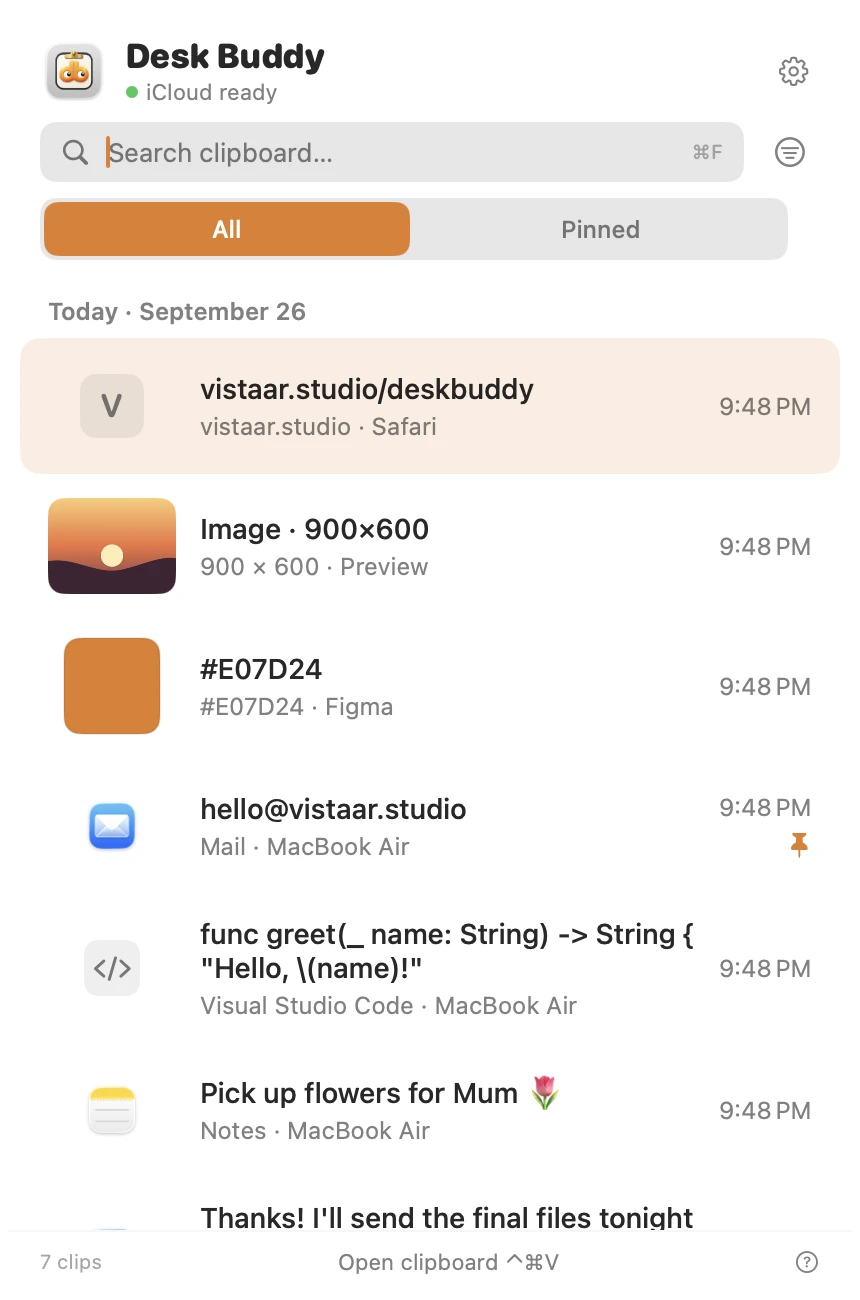
Desk Buddy is our clipboard manager for Mac, so read this knowing that. It keeps a history of what you copy (text, links, images, colours, code and files) with search, pins and boards, and shows which app or website each copy came from. Press Control ⌘ V (or click the menu-bar icon, or Buddy, the little character at the edge of your screen) and click a copy to paste it where you were typing. It's for keeping copies; it doesn't replace Paste and Match Style.
Desk Buddy is available now from vistaar.studio as Desk Buddy Complete: $5 for 1 Mac (₹499 in India), paid up front, instant download. A Mac App Store edition is coming soon: a free download with a 7-day free trial, then a one-time $9.99 unlock. Meet Desk Buddy →
Quick fixes when it still looks wrong
- Text still has the old font in Mail: undo, then re-paste with ⌥ ⇧ ⌘ V. If the whole message should be plain, choose Format › Make Plain Text in Mail's compose window (this removes all formatting from that message).
- Bullets and line breaks came along: that's structure, not style. Some apps keep it on purpose. Paste into a plain-text TextEdit window first if you need one flat paragraph.
- The shortcut pastes nothing at all: the clipboard itself may be stuck. See copy and paste not working on Mac.
- Copying text from a PDF gives broken lines: see can't copy text from a PDF on Mac.
FAQ
What is the shortcut to paste without formatting on a Mac?
⌥ ⇧ ⌘ V, or Edit › Paste and Match Style. Google Docs uses ⌘ ⇧ V.
Can I make ⌘ V always paste without formatting?
Yes: System Settings › Keyboard › Keyboard Shortcuts › App Shortcuts, add Paste and Match Style for All Applications with ⌘ V. It works in apps that have that exact menu item.
Why doesn't it work in Microsoft Word?
Word names the command Paste and Match Formatting. Use that menu item or the Paste Options button › Keep Text Only, or add an App Shortcut for Word with that title.
How do I remove formatting from text I already copied?
Run pbpaste | pbcopy in Terminal, then paste normally. Or paste into a plain-text TextEdit window and copy it again.
How do I paste plain text in Google Docs on a Mac?
⌘ ⇧ V, or Edit › Paste without formatting.
Does Paste and Match Style remove links?
In most Apple apps, yes: you get the words without the link, bold or colour. Some apps keep line breaks or list bullets.