Guides › Clipboard on Mac
Can't copy text from a PDF on Mac? Why, and how to fix it
Updated 16 October 2026 · by Vistaar Studio
Short answer: open the PDF in Preview, choose Tools › Text Selection, drag over the words and press ⌘ C. If nothing highlights, the PDF is probably a scan (a picture of a page, with no text inside) or it's password-protected. For a scan, use Preview's File › Export › Embed Text, or screenshot the passage and copy it with Live Text.
Copying from a PDF should be as easy as copying from a web page, and most of the time it is. When it isn't, there's nearly always one of four reasons behind it. Here's how to tell which one you've hit and what to do about each, using only what's already on your Mac.
1. The normal way, in Preview
- Open the PDF in Preview (double-click it, or Control-click › Open With › Preview).
- Choose Tools › Text Selection. The pointer becomes an I-beam over text.
- Drag across the text you want. To take a whole page, click in the text and press ⌘ A.
- Press ⌘ C (or Edit › Copy), then paste where you need it.
Two handy variations from Apple's Preview guide:
- Just one column, such as the prices in a table or the left half of a two-column paper: hold ⌥ Option while you drag. You get a box, and only the text inside it is selected.
- Copy it as a picture instead: choose Tools › Rectangular Selection, drag over the area, and press ⌘ C. Useful for a chart, a logo or a signature block.
The same drag-and-copy works in Safari, Chrome and Acrobat Reader, so if a PDF opens in your browser you don't need to download it first.
2. Nothing highlights? Check the tool first
The most common cause is the simplest. If you used the Markup toolbar earlier, Preview may still be on a shape, sketch or rectangle tool, and dragging draws a box instead of selecting words. Choose Tools › Text Selection again, or show the Markup toolbar (View › Show Markup Toolbar) and click its Text Selection button.
3. Is it a scanned PDF? How to tell
A PDF made from a scanner, a phone "scan" app or a photocopier is usually just a photo of each page. It looks like text, but to the Mac it's one big picture, so there's nothing to select. Two quick tests:
- Search it. Press ⌘ F and type a word you can clearly see on the page. If Preview finds no matches, the page has no text layer.
- Drag over it. If the whole page highlights as one block, or the pointer stays an arrow, it's an image.
Fix A: Embed Text (whole document)
Since macOS Ventura, Preview can read a scanned PDF and save a copy with real, selectable text in it:
- Open the PDF in Preview.
- Choose File › Export.
- Tick Embed Text, give the copy a new name, and click Save.
- Open the new file. You should now be able to search it and select text normally.
Apple notes that the Embed Text option only appears when Preview hasn't already found text in the document. If you don't see it, the PDF already has a text layer (go back to step 2), or it's a mix of text and images. Recognition quality depends on the scan: a straight, sharp, high-contrast page works far better than a skewed phone photo under a lamp.
Fix B: Live Text (a paragraph or two)
For a short passage, the quickest route is a screenshot:
- Press Control ⇧ ⌘ 4 and drag over the text. That copies a picture of it to the clipboard (more on copying screenshots).
- In Preview, choose File › New from Clipboard.
- Drag over the words in the picture, Control-click and choose Copy Text.
Live Text needs a supported language and region; our guide to copying text from an image on Mac covers it in detail, including a Shortcut that grabs all the text in one go.
4. Password-protected or locked PDFs
Some PDFs are encrypted. Bank statements, payslips and official forms often ask for a password before they open at all; others open fine but block copying or printing.
- You have the password: choose Tools › Show Inspector, click the Encryption (padlock) button and enter it. Text selection should then work.
- You don't: the author chose to restrict copying, often for copyright. Ask them for an unlocked copy, or type out the bit you need. We won't point you to ways round it.
5. It copied, but the paste looks wrong
| What you see | Why | What to do |
|---|---|---|
| A line break after every line | A PDF stores each printed line on its own | Paste, then join the lines; for long passages, copy one paragraph at a time |
| Odd fonts, colours or sizes | Formatting came along with the text | Paste with ⌥ ⇧ ⌘ V (Paste and Match Style) |
| Words run together, or two columns mixed up | The PDF's reading order doesn't match the layout | Option-drag one column at a time |
| Gibberish or boxes instead of letters | The PDF's font has no proper character map | Treat it like a scan: Embed Text or Live Text |
| "fi" or "fl" missing from words | Ligatures copied as single symbols | Fix with Find and Replace after pasting |
Keep what you copy from PDFs
Pulling quotes, figures and references out of a long PDF usually means a lot of back-and-forth: copy, switch, paste, switch back. The Mac clipboard holds one item, so each new copy replaces the last. macOS Tahoe's Spotlight clipboard history (⌘ Space, then ⌘ 4) helps with recent plain text; our clipboard history guide explains its limits, and there are more tricks in copying several things at once.
Desk Buddy
Desk Buddy is our clipboard manager for Mac, so weigh this part with that in mind. It keeps a history of everything you copy, text, links, images and files, so you can copy ten passages from a PDF and paste them later in any order. Press Control ⌘ V (or click the menu-bar icon, or Buddy at the edge of your screen) and click the copy you want.
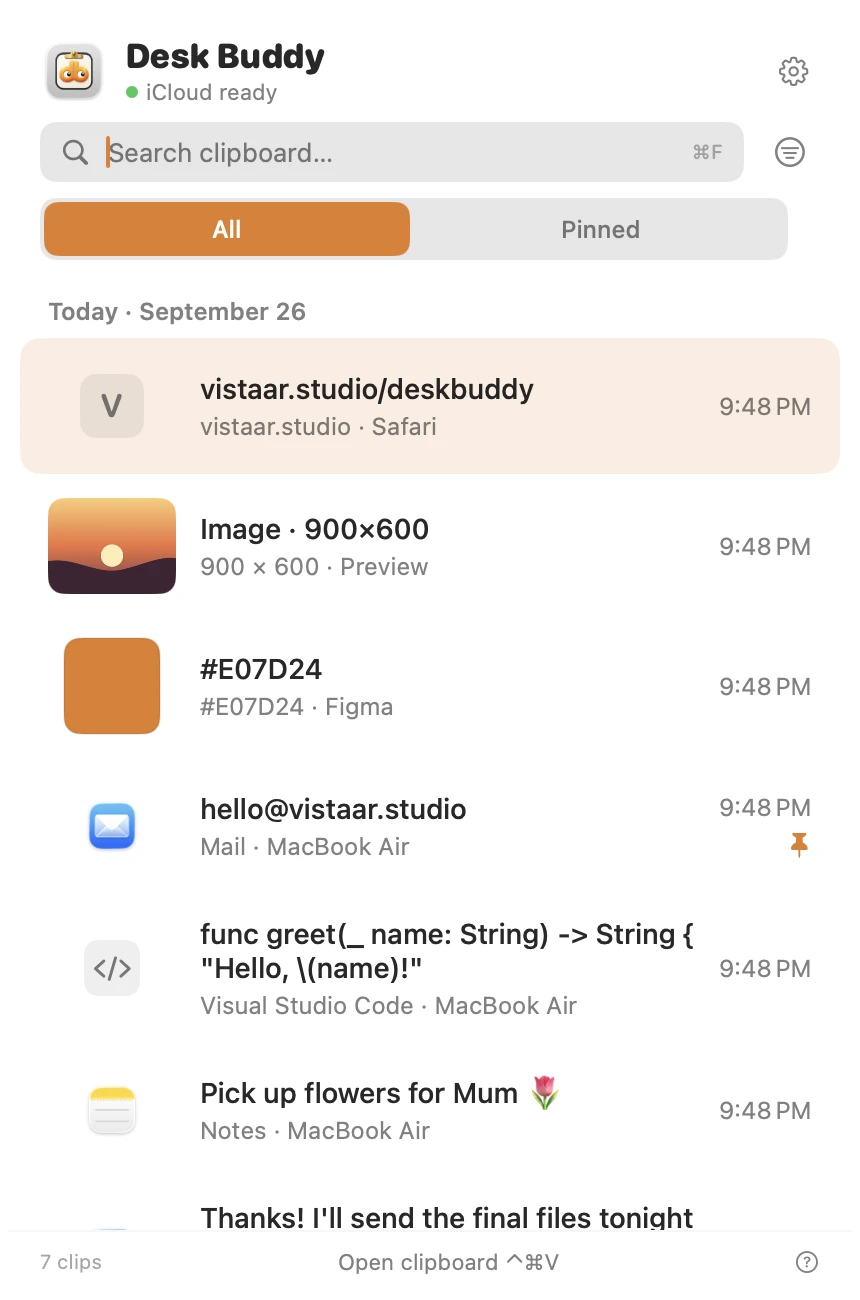
- Search the history, pin what you reuse, and group copies into boards, for example one per report.
- Password managers are left out of history, and copies other apps mark as private are never saved.
- Copy Text from Screen (in Desk Buddy Complete). Press Control ⌘ 2, drag a box over any part of the screen, including a scanned PDF, and the recognised text goes straight onto your clipboard and into your history. It runs on your Mac with Apple's Vision framework and needs macOS 14 or later. It also reads QR codes and barcodes inside the box. Live Text (above) remains the free way.
Desk Buddy is available now from vistaar.studio as Desk Buddy Complete: $5 for 1 Mac (₹499 in India), paid up front, instant download. A Mac App Store edition is coming soon: a free download with a 7-day free trial, then a one-time $9.99 unlock. Meet Desk Buddy →
FAQ
Why can't I highlight text in a PDF on my Mac?
Preview is on the wrong tool (choose Tools › Text Selection), the PDF is password-protected, or it's a scan with no real text in it.
How can I tell if a PDF is scanned?
Press ⌘ F and search for a word you can see. No matches, or the whole page selecting as one block, means it's an image.
How do I copy text from a scanned PDF on Mac for free?
Preview › File › Export › Embed Text (macOS Ventura or later) saves a searchable copy. For a short bit, screenshot it and use Live Text: drag, Control-click, Copy Text.
Why does text copied from a PDF paste with line breaks?
PDFs store each printed line separately. Paste with ⌥ ⇧ ⌘ V, then join the lines, or copy a paragraph at a time.
How do I copy one column from a PDF table?
With Text Selection on, hold ⌥ Option and drag a box over the column, then ⌘ C.
Can I copy text from a PDF that is locked against copying?
Enter the password in Tools › Show Inspector › Encryption if you have it. If not, ask the author for an unlocked copy.