Guides › Photos
The best batch image resizer for Mac in 2026
Updated 25 October 2026 · by Vistaar Studio
Short answer: for an occasional folder of photos, you don't need an app: Preview and the Finder's Convert Image are free and already on your Mac. For more control at no cost, XnConvert is free for private use. BatchPhoto adds renaming, watermarks and a target file size; Retrobatch suits repeatable workflows; PhotoBulk is a cheap App Store option for watermarking. Pictailor (ours) is for hitting exact KB limits for forms and shops.
"Batch resizing" covers very different jobs. Shrinking 300 holiday photos to email them is not the same as getting 40 product photos onto a white 1:1 square, or getting a passport photo under 250 KB. So instead of crowning one winner, this guide compares the realistic options on the things that decide the choice: price, how you set the size, whether it can hit a file size (not just pixel dimensions), and what else it does to your files.
How we checked: every price and feature below comes from the app's official website or Mac App Store page, read on 25 October 2026. Nobody paid to be included. We make Pictailor, which is labelled and listed last; judge that part accordingly. Prices change, so confirm on the maker's page before you buy.
Comparison at a glance
| Tool | Price | Target file size (KB) | Good at | Mac |
|---|---|---|---|---|
| Preview + Convert Image | Free, built in | No | Quick one-off jobs | Any recent macOS (Convert Image: Monterey 12+) |
| XnConvert | Free for private, educational and non-profit use; paid licence for companies | Not stated | Huge format support, free | Universal (Intel or Apple Silicon) |
| BatchPhoto | Lifetime licence, no subscription (from $29.99 per its store page) | Yes (JPEG, e.g. 100 KB) | Rename, watermark, RAW | Universal |
| Retrobatch | Paid, 7-day free trial | Not stated | Repeatable node-based workflows | macOS 12+, Universal |
| PhotoBulk | $9.99 on the Mac App Store | Not stated (quality setting) | Watermarks, renaming, presets | macOS 10.13+ |
| Pictailor (ours) | $5 direct | Yes, checked on the saved file | Form, passport and shop sizes | macOS 15+, Apple Silicon and Intel |
1. Preview and Convert Image (free, built in)
Before buying anything, try what's on your Mac. Preview can resize many images at once: open them together, select them all in the sidebar (⌘ A), choose Tools › Adjust Size, and set a width, height or percentage. It shows the new file size at the bottom. The catch: it changes the files you opened, so work on copies.
The Finder's Convert Image quick action (macOS Monterey and later) is even quicker and leaves the originals alone. Select the photos, Control-click, choose Quick Actions › Convert Image, then pick a format and a size. You choose Small, Medium, Large or Actual Size rather than exact pixels.
Step-by-step instructions for both, plus Shortcuts and a tested Terminal command, are in our guide to batch resizing images on Mac.
Choose it if: you resize a batch now and then, and "about this big" is good enough. Skip it if: you need a file-size limit, renaming or watermarks.
2. XnConvert (free for personal use)
XnConvert, from the makers of XnView, is a cross-platform batch converter. You add files, stack up actions (resize, crop, rotate, watermark, colour adjustments and many more), choose an output format and folder, and convert. Its strength is breadth: it reads hundreds of formats and writes dozens, so it's handy for unusual files too.
It's free for private, educational and non-profit use, and companies buy a licence. The current Mac build is Universal (Intel or Apple Silicon). The interface is functional rather than Mac-like, and the number of options can feel like a lot at first.
Choose it if: you want a capable free tool and don't mind a busier interface. Skip it if: you want ready-made sizes for specific forms or shops.
3. BatchPhoto (one-time licence)
BatchPhoto, by Bits&Coffee, is a long-running batch editor built around a simple three-step flow: add photos, add edits, choose output. Its official version history lists a feature most resizers lack: JPEG output with a predefined file size, such as 100 KB. It also resizes by width and height or percentage, can avoid upscaling, renames files, and adds text or logo watermarks (some features depend on the edition).
It's sold with a lifetime licence (no subscription) in several editions, with prices starting from $29.99 on its store page, and it's a Universal app. The latest version (5.1.1) came out in June 2026.
Choose it if: you process photos regularly and want resize, rename and watermark in one pass. Skip it if: you only resize a few times a year.
4. Retrobatch (for repeatable workflows)
Retrobatch, from Flying Meat (the makers of Acorn), works differently: you build a workflow by connecting nodes, for example read folder → scale → add watermark → write JPEG, then run it on any folder whenever you need it. It can write several sizes at once (handy for @1x and @2x images), crop, add watermarks and edit metadata.
It's a paid app with a 7-day free trial, runs on macOS 12 or later (including macOS 27) and is a Universal Binary.
Choose it if: you repeat the same multi-step job every week, or produce images for apps and websites. Skip it if: you just want to drop photos in and press Save.
5. PhotoBulk (inexpensive, on the App Store)
PhotoBulk is a Mac App Store app from Eltima for resizing, watermarking and renaming in bulk. You can resize by width, height, percentage or a maximum size, avoid enlarging small images, rename with number sequences, and add text, image or date watermarks. It has a JPEG quality setting and optimisation, but doesn't state a target file size.
It costs $9.99, needs macOS 10.13 or later, and was last updated in October 2026.
Choose it if: watermarking is the main job and you want an App Store purchase. Skip it if: you must stay under a KB limit.
What about ImageOptim?
ImageOptim is free and excellent at making JPEG, PNG and GIF files smaller without visible changes, but its Mac app page describes optimisation, not resizing. Use it after resizing, not instead of it.
6. Pictailor (ours): exact sizes for forms and shops
We make this app, so read this part with that in mind. Pictailor exists for one kind of batch job: a website or form says "JPEG, under 100 KB" or "white square, 1,000 px or more", and you have a folder of photos that must all pass.
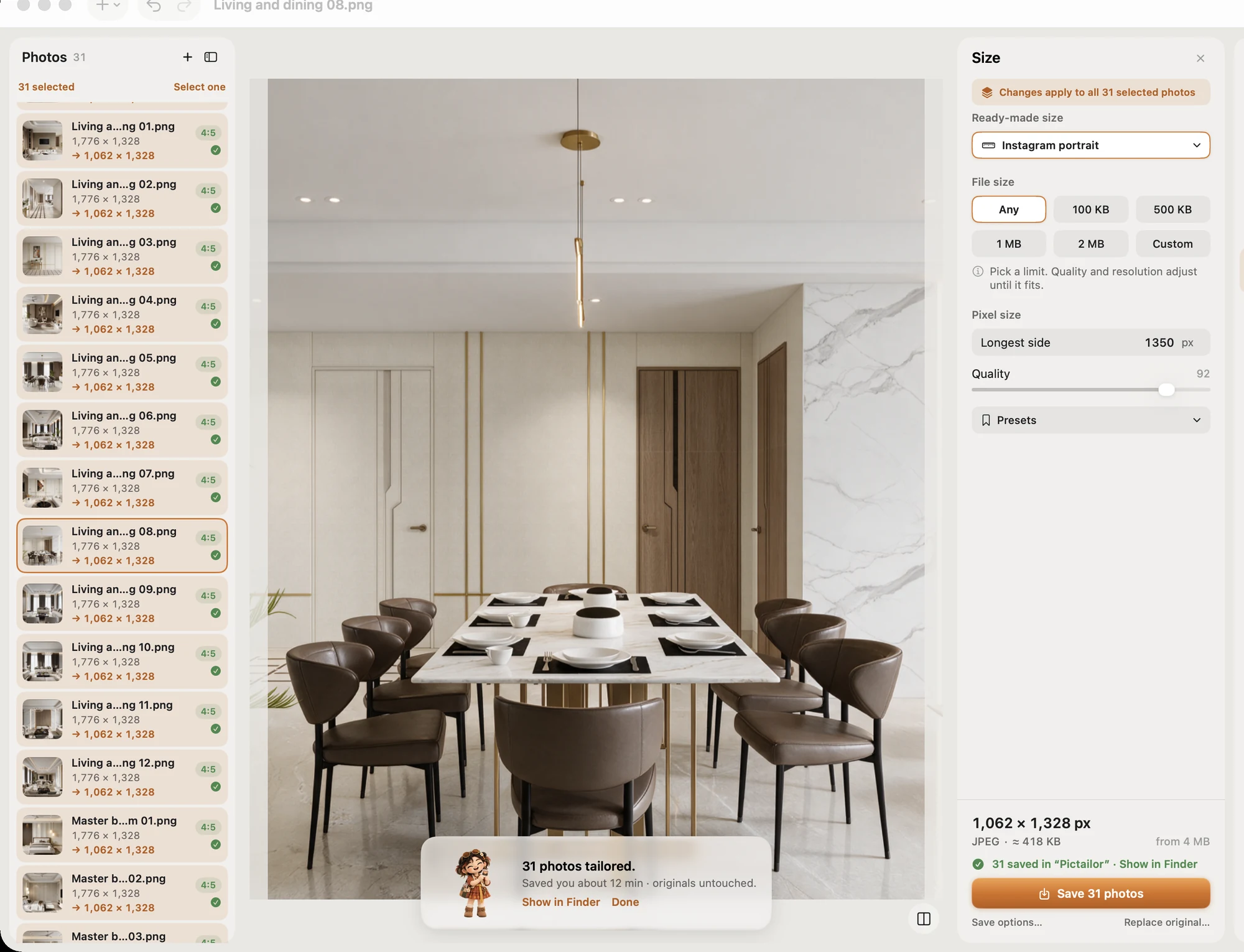
- Batch resize a whole folder in one Save. Originals are never changed: copies go to a Pictailor folder beside them.
- Compress to an exact file size (under 500 KB, 100 KB, 20 KB…), checked on the real saved file. It never enlarges a photo.
- Ready-made sizes for social posts, online shops (an Amazon and Shopify white square), passport and ID photos for many countries, exam photos and 10–20 KB signatures.
- Remove the background on your Mac (one-time model download).
- Saves JPEG, PNG, HEIC, TIFF, PDF, ICO, ICNS and GIF, and works from a right-click in the Finder.
It doesn't try to be XnConvert or Retrobatch: there are no node workflows or hundreds of formats. If your job is "make these fit the rules", that's what it's for.
Pictailor is available now from vistaar.studio for $5 (₹499 in India), paid up front, with a licence key for 1 Mac. It's also on the Mac App Store for $4.99. It runs on Apple Silicon and Intel Macs with macOS 15 or later. Meet Pictailor →
Which one should you pick?
- A few times a year, nothing fussy: Preview or Convert Image.
- Free, lots of formats and options: XnConvert.
- Regular jobs with renaming and watermarks: BatchPhoto, or PhotoBulk if you'd rather buy from the App Store.
- The same multi-step job again and again: Retrobatch.
- Forms, passports, exam portals and shop listings with KB limits: Pictailor.
Whichever you choose, run it on a copy of the folder first and open a couple of results to check the size and quality before you upload the lot.
FAQ
What is the best free batch image resizer for Mac?
Preview and Convert Image for occasional jobs; XnConvert if you need more options (free for private and educational use).
Can I batch resize images on Mac without an app?
Yes: Preview's Adjust Size, Convert Image in the Finder, the Shortcuts Resize Image action, or sips -Z in Terminal. See our step-by-step guide.
Which Mac app can resize photos to an exact file size in KB?
BatchPhoto lists JPEG output with a predefined file size, and Pictailor compresses to a target and checks the saved file. For a single photo, see how to resize a photo to 50 KB on Mac.
Does ImageOptim resize images?
Its Mac page describes compression only. Resize first, then optimise.
Will batch resizing overwrite my original photos?
Preview's Adjust Size edits the open files; most dedicated apps write new copies. Check the output setting, and keep a backup.