Guides › Clipboard
How to copy a file path on Mac
Updated 21 October 2026 · by Vistaar Studio
Short answer: select the file or folder in the Finder and press ⌥ ⌘ C (Option-Command-C). Its full path, for example /Users/you/Documents/report.pdf, goes onto the clipboard as plain text. Paste it anywhere with ⌘ V. If you prefer menus, right-click the file and hold Option: "Copy" turns into Copy "report.pdf" as Pathname.
A path is the file's full address on your Mac: every folder from the top of the disk down to the file itself. You need it when a support person asks where a file is, when a script or Terminal command wants a location, when you share a file on a team server, or when an upload box has a "type a path" field. The Finder hides paths by default, which is why so many people search for this. Here are the five built-in ways, plus the small traps that make a copied path fail.
1. Option-Command-C in the Finder (fastest)
- In a Finder window, click the file or folder once to select it. Don't open it.
- Press ⌥ ⌘ C.
- Click where you want the path and press ⌘ V.
Nothing visible happens when you press the shortcut, so it's easy to think it didn't work. Paste into a note or a message to check. The path is plain text, with no formatting and no link attached.
The same command is in the menus, just hidden behind the Option key: open the Edit menu and hold ⌥, and Copy becomes Copy "name" as Pathname. Or right-click (Control-click) the file, then hold ⌥ while the menu is open. This has been part of the Finder since OS X El Capitan, so it works on almost any Mac still in use.
2. The path bar: see the path, then copy any folder in it
If you want to see where a file lives as well as copy it, switch on the path bar:
- In the Finder, choose View › Show Path Bar (or press ⌥ ⌘ P).
- A strip appears at the bottom of every Finder window, showing the folders above the selected file: Macintosh HD › Users › you › Documents › report.pdf.
- Control-click any item in that strip and choose Copy "name" as Pathname.
The path bar is handy for copying the path of the folder you're in, or of a parent folder, without going back up and selecting it. You can also double-click any folder in the bar to jump to it. It stays switched on until you choose View › Hide Path Bar.
3. Drag the file into Terminal
Open Terminal (Applications › Utilities), then drag a file from the Finder into the Terminal window. Its path appears where the cursor is, ready for a command. This is the best way when the path is going into Terminal, because Terminal adds a backslash in front of every space and special character, so the path works first time:
/Users/you/Documents/Tax\ 2026/My\ Receipts.pdfThe same drag trick works in many text boxes, including the Go › Go to Folder sheet in the Finder (⇧ ⌘ G): drag a file into it to see the path, which you can then select and copy.
4. Terminal commands that copy a path
If you're already working in Terminal, two short commands send a path straight to the clipboard:
pwd | pbcopy                  # the folder you're in
realpath "My File.pdf" | pbcopy   # the full path of one file
pbcopy is the Mac's built-in "copy to clipboard" command, and realpath turns a short name into the full path from the top of the disk. We ran both on macOS Tahoe 26.2. One quirk we hit while testing: a file in /tmp comes back as /private/tmp/…, because /tmp is a shortcut to that folder. Both versions work.
5. Get Info: the folder, not the file
Select a file and press ⌘ I. Under General, the Where line shows the folder that holds it, and you can select that text and copy it. Note that it's the folder path only: the file name isn't included, so add it yourself or use one of the methods above.
Which method should you use?
| You want to… | Use | What you get |
|---|---|---|
| Paste a path into a message, document or form | ⌥ ⌘ C | /Users/you/Tax 2026/My Receipts.pdf |
| Use the path in a Terminal command | Drag into Terminal | /Users/you/Tax\ 2026/My\ Receipts.pdf |
| Copy the folder you're in | Path bar, or pwd | pbcopy | /Users/you/Tax 2026 |
| Copy many paths at once | Select all, ⌥ ⌘ C | One path per line |
| Just see where a file is | View › Show Path Bar | Folders shown at the bottom of the window |
Copying several paths at once
Select several files in the Finder (hold ⌘ and click, or ⌘ A for the whole folder) and press ⌥ ⌘ C. With Option held, the Edit menu now reads Copy N Items as Pathnames. You get one path per line, which pastes neatly into a spreadsheet column, an email or a list of files for a colleague to check.
When a copied path doesn't work
- Terminal says "No such file or directory". The path has spaces. A path from ⌥⌘C isn't escaped, so wrap it in quotes:
open "/Users/you/Tax 2026/My Receipts.pdf". Or drag the file in instead. - It pasted the file, not the path. You pressed ⌘C rather than ⌥⌘C. Plain ⌘C copies the file itself (so you can paste a copy into another folder); only the Option version copies its address.
- The iCloud Drive path looks strange. Files in iCloud Drive really live in
~/Library/Mobile Documents/com~apple~CloudDocs/, and that's what you'll get. If you've turned on iCloud's Desktop & Documents sync, those two folders keep their normal paths (/Users/you/Desktop,/Users/you/Documents). - Someone on Windows can't use it. Mac paths use forward slashes and start at
/. A path on your Mac only makes sense on your Mac; for a shared server, copy the path from the mounted server in the Finder (it starts with/Volumes/) and tell them the server name. - ~ instead of /Users/you. In Terminal,
~is short for your home folder. Apps and websites don't understand it, so paste the full path there.
The other trap: the next copy wipes the path
A path you copy sits on the clipboard, and the Mac clipboard holds one thing at a time. Copy a reply to the person who asked for the path and the path is gone. On macOS Tahoe you can get recent copies back from Spotlight: press ⌘ Space, then ⌘ 4 (see our clipboard history guide for how long it keeps them). On older Macs, a copy you overwrite is lost unless you have a clipboard manager.
Keep every path you copy: Desk Buddy (our app)
We make Desk Buddy, so read this with that in mind. You don't need it to copy a path; ⌥⌘C does that. It helps when you copy paths often: support work, filing, scripts, or sending a colleague five locations one after another. Desk Buddy is a clipboard manager that keeps a history of what you copy, including text (so every path), links, images, colours, code and files.
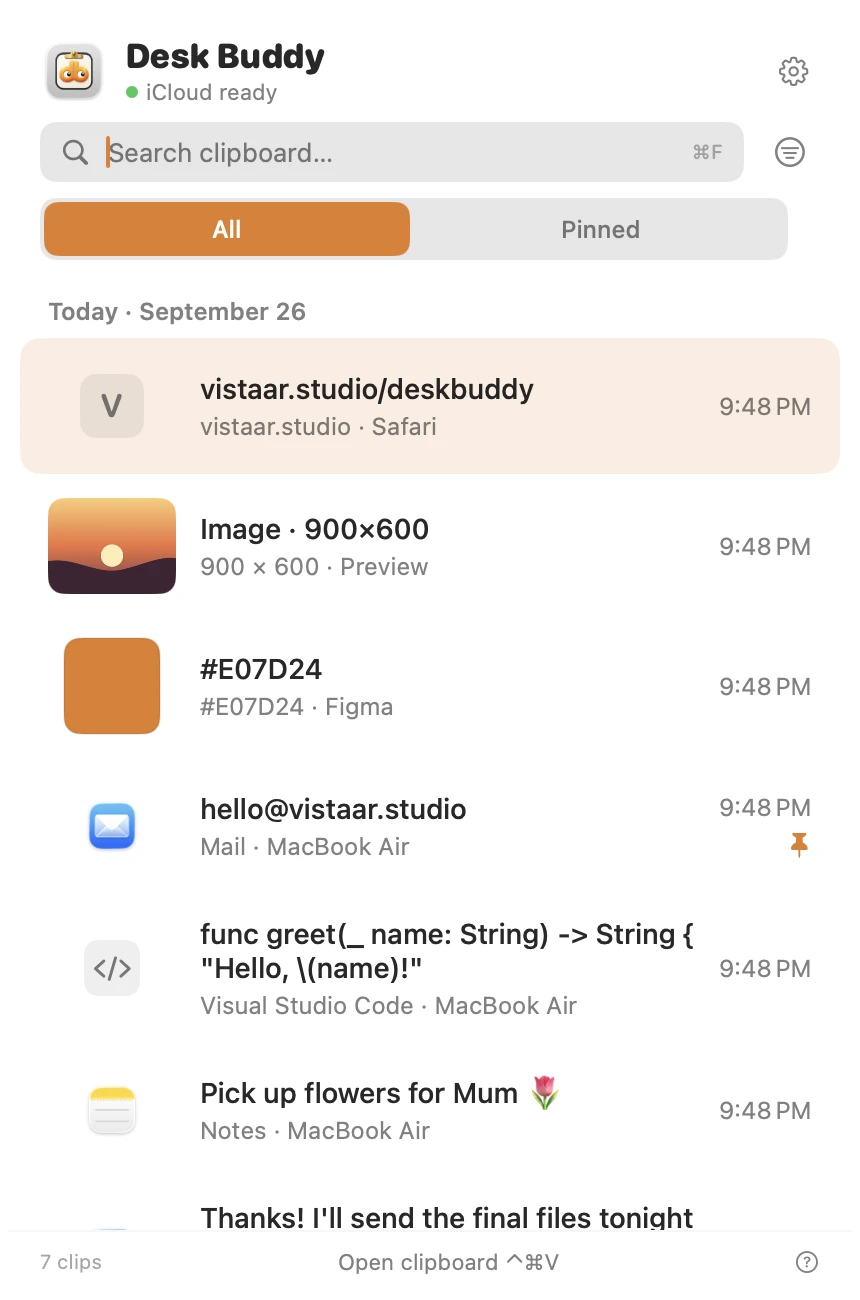
- Press Control ⌘ V (or click the menu-bar icon, or Buddy at the edge of your screen) to open the history, then click a path to paste it where you were typing.
- Search the history for part of a folder name to find a path you copied earlier.
- Pin the paths you use every week, or group them into a board.
- Optional sync of the history between your Macs through your own iCloud.
Desk Buddy is available now from vistaar.studio as Desk Buddy Complete: $5 for 1 Mac (₹499 in India), paid up front, instant download. A Mac App Store edition is coming soon: a free download with a 7-day free trial, then a one-time $9.99 unlock. It needs macOS 14 or later. Meet Desk Buddy →
FAQ
What is the shortcut to copy a file path on Mac?
Select the file in the Finder and press ⌥ ⌘ C. The full path is copied as plain text; paste it with ⌘ V.
Why don't I see Copy as Pathname when I right-click?
It only appears while you hold ⌥ Option. Right-click the file, then press Option: "Copy" changes to "Copy … as Pathname". The Edit menu works the same way.
How do I copy the path of a folder I'm already in?
Turn on View › Show Path Bar, then Control-click the folder in the bar and choose Copy as Pathname. In Terminal, pwd | pbcopy does it.
How do I copy the paths of several files at once?
Select them all and press ⌥ ⌘ C. You get one path per line.
Why does the path break when I paste it into Terminal?
Spaces. Put the path in quotes, or drag the file into Terminal, which escapes the spaces for you.
Where is iCloud Drive on a Mac, as a path?
Under ~/Library/Mobile Documents/com~apple~CloudDocs/. Desktop and Documents keep their usual paths even when they sync with iCloud.