Guides › Clipboard
How to scan a QR code on Mac
Updated 28 October 2026 · by Vistaar Studio
Short answer: macOS doesn't have a built-in QR code scanner, and Live Text doesn't decode QR codes on a Mac. The quickest fix is to point your iPhone's Camera at the screen and tap the link. Without a phone, open the page or image in Chrome, choose Search with Google Lens and drag over the code. If you'd rather keep it offline, a short Terminal script using Apple's own QR detector reads codes from any image file.
QR codes turn up on Mac screens all the time now: a Wi-Fi code in a PDF, a payment or sign-in code on a website, a code on a slide in a Zoom call, a ticket in an email. Phones read them instantly; Macs, oddly, don't. Below is why, and the ways that actually work, starting with the fastest.
Why Live Text won't read the code
Live Text, the feature that lets you select text in photos, screenshots and paused videos, is great at words. If a web address is printed next to the code, you can select it in Preview or Photos and open it. But it doesn't decode the black-and-white squares themselves. Apple's developer documentation for its image-analysis framework (VisionKit) lists QR codes and barcodes as something it can detect, then adds that the option is ignored on macOS. It works on iPhone and iPad, which is why the same picture behaves differently on each device.
So if you've been hovering over a QR code in Preview waiting for something to happen, it isn't you. Here's what to do instead.
1. Point your iPhone at the screen (fastest)
If you have an iPhone or iPad nearby, this takes two seconds and works for codes on your screen and on paper.
- Open the Camera app on the iPhone and point it at the code on your Mac's screen. Turn the Mac's brightness up if the screen glares.
- Tap the yellow link that appears on the iPhone to open it.
You can also add Code Scanner to Control Center on the iPhone, which only reads codes and doesn't save photos. If you then want the link on your Mac, copy it on the iPhone and paste on the Mac with Universal Clipboard (same Apple Account, Handoff turned on).
2. Google Lens in Chrome (no phone needed)
Chrome on the Mac has Google Lens built in, and Lens reads QR codes anywhere on a page.
- Open the page with the code in Chrome. For an image or PDF saved on your Mac, drag the file into a Chrome window first.
- Click the More menu (three dots) and choose Search with Google Lens, or Control-click the page and choose it there.
- Drag a box over the QR code. The decoded link or text shows in the side panel; click it to open it, or select and copy it.
Two things to know: Lens sends the area you select to Google to analyse, so don't use it on codes that contain anything private (a two-factor setup code, for instance). And menu names have changed a few times between Chrome versions; if you can't find it, try Control-clicking an image.
3. Decode an image offline with a Terminal script
macOS can't decode QR codes from its menus, but the system does include a QR detector for developers, in Core Image. A tiny Swift script can use it to read any screenshot or saved image, entirely on your Mac. We tested this on macOS 26.2 with a PNG, a shrunk 200-pixel copy and a heavily compressed JPEG; it read all three.
- If you've never used developer tools on this Mac, open Terminal and run
xcode-select --installonce. It installs Apple's free command-line tools, includingswift. - Open TextEdit, choose Format › Make Plain Text, paste the lines below and save the file to your home folder as
readqr.swift.
import CoreImage
let url = URL(fileURLWithPath: CommandLine.arguments[1])
let img = CIImage(contentsOf: url)!
let d = CIDetector(ofType: CIDetectorTypeQRCode, context: nil,
                   options: [CIDetectorAccuracy: CIDetectorAccuracyHigh])!
for f in d.features(in: img) {
  if let q = f as? CIQRCodeFeature { print(q.messageString ?? "") }
}- Take a screenshot of the code with ⇧ ⌘ 4 (it lands on your desktop), or use any image you already have.
- In Terminal, type
swift readqr.swift(with a space at the end), drag the image file into the Terminal window and press Return. The code's link or text is printed.
To send the result straight to your clipboard, add | pbcopy at the end of the command. The first run takes a few seconds while Swift compiles the script. If the image has no readable QR code, nothing is printed; try a larger, sharper screenshot. This reads QR codes only, not shop barcodes.
4. Use your Mac's webcam
For a code on paper or on a phone, the Mac's camera can work, but not with the apps that come with macOS: Photo Booth and FaceTime show the picture and do nothing with the code. You'd need a QR scanner app from the Mac App Store. Read the reviews and the privacy details on its App Store page first, as quality varies. Honestly, for paper codes the iPhone is quicker.
Which way should you use?
| Where the code is | Easiest way | Leaves your Mac? |
|---|---|---|
| On a web page | iPhone Camera, or Google Lens in Chrome | Lens: yes, the selected area goes to Google |
| In a PDF, email or image file | Drag it into Chrome and use Lens, or the Terminal script | Script: no |
| In a video call or slide | iPhone Camera at the screen, or screenshot + script | Script: no |
| Private (2FA setup, Wi-Fi password) | Terminal script, or your iPhone | Script: no |
| On paper | iPhone Camera, or a webcam app | Depends on the app |
Before you open the link: a quick safety check
A QR code is a link you can't read until it's decoded, which makes it handy for scammers. Fake codes stuck on parking meters and in "your parcel is waiting" emails are common. Every method above shows you the decoded address before you open it, so take a second to read it: does the domain match who the code claims to be from? Is it a short link hiding where it goes? Never type a password or card number on a page you reached from a code you don't trust.
Read codes from anywhere on screen: Desk Buddy
We make this app, so weigh this part accordingly. If you only meet a QR code on your Mac once a month, the free ways above are fine. Desk Buddy is a clipboard manager, and its screen-reading tool is handy if codes and on-screen text are a regular part of your day.
- Copy Text from Screen. Press ⌃ ⌘ 2 and drag a box over anything on screen: a web page, a PDF, a slide in a call, an image. QR codes and barcodes in the box are read, along with any text, and the result goes onto your clipboard and into your history. It works on your Mac with Apple's Vision framework, with no account and no network, and needs the Screen Recording permission once.
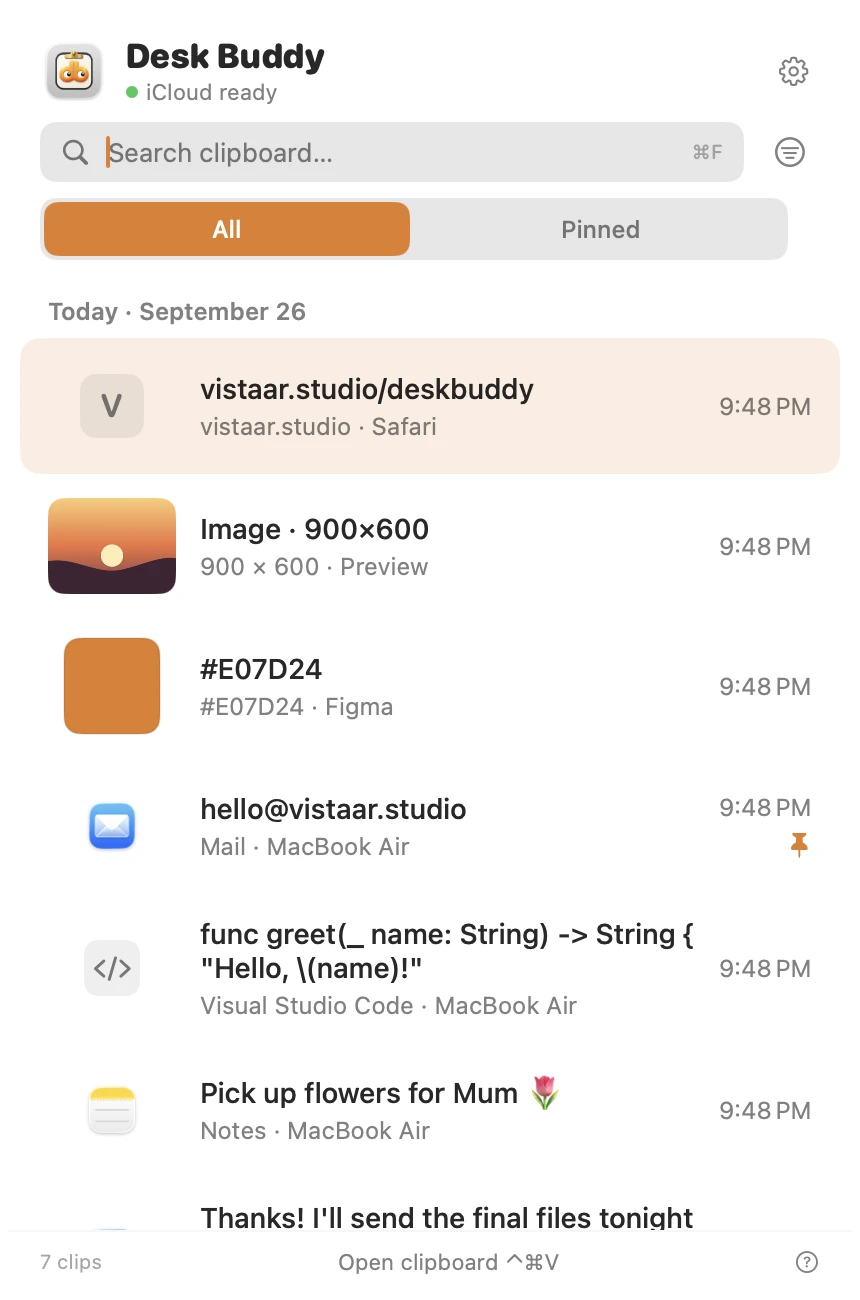
- Clipboard history. Text, links, images, colours, code and files you copy are kept. Press ⌃ ⌘ V to open the history and click a copy to paste it where you were typing.
- Search, pin and boards, and it shows which app or website each copy came from.
It reads only the area you box, when you ask; it doesn't scan your screen or your images in the background.
Desk Buddy is available now from vistaar.studio as Desk Buddy Complete: $5 for 1 Mac (₹499 in India), paid up front, instant download. A Mac App Store edition is coming soon: a free download with a 7-day free trial, then a $9.99 in-app unlock. Both include Copy Text from Screen. It needs macOS 14 or later. Meet Desk Buddy →
FAQ
Does a Mac have a built-in QR code scanner?
No. There's no app or menu command for it, and Live Text doesn't decode QR codes on a Mac (Apple's documentation says that option is ignored on macOS). Use your iPhone, Google Lens in Chrome, the Terminal script or an app.
How do I scan a QR code that is on my Mac's screen?
Point your iPhone's Camera at the screen and tap the link. Without a phone, use Search with Google Lens in Chrome and drag over the code, or screenshot it and decode the image.
How do I read a QR code from a picture saved on my Mac?
Drag the image into Chrome and use Lens, or run the Terminal script above on the file. The script works offline.
Can my Mac's webcam scan a QR code?
Not with the built-in apps. Photo Booth and FaceTime don't decode codes; you need a scanner app from the Mac App Store.
Is it safe to open a QR code link?
Read the decoded address first. Scam codes are common; don't enter passwords or card details on a page from a code you don't trust.
How do I make a QR code on a Mac?
In Chrome, use Create QR Code from the share options in the More menu or the address bar. In the Shortcuts app, the Create QR Code action turns any text or link into a code.