Guides › Clipboard
How to copy text from a video on Mac
Updated 27 October 2026 · by Vistaar Studio
Short answer: pause the video on the frame with the text, drag across the words and press ⌘ C. That's Live Text, which works on paused video since macOS Ventura. If the player won't let you select anything (Chrome, Zoom, many web players), press ⌃ ⇧ ⌘ 4, drag a box around the text, then in Preview choose File › New from Clipboard and copy the text from there. Both are free and built in.
People need this for all sorts of reasons: a command in a coding tutorial, a recipe on a cooking video, a slide in a recorded lecture, an address in a vlog, a code shown during a webinar. Typing it out by hand is slow and easy to get wrong. Below are the ways that work on a Mac, starting with the quickest, plus what to do when you actually want the spoken words.
Before you start: check Live Text is on
Open System Settings › General › Language & Region and make sure Live Text is switched on. It's on by default on most Macs, but if it's off, none of the select-and-copy methods below will work. Live Text recognises the text on your Mac itself; you don't need to be online. It only reads supported languages, so text in some scripts may not be picked up.
1. Photos: pause, click Live Text, Copy All
This is the most dependable way for a video file you have, such as a screen recording, a clip from your iPhone, or a downloaded lecture.
- Open the video in Photos (drag it into the Photos window to import it, if it isn't there already).
- Play it and pause on the frame where the text is biggest and sharpest.
- Click the Live Text button that appears on the paused frame (a small square with lines in it). The text that macOS found is highlighted.
- Click Copy All to grab everything, or drag across just the words you want and press ⌘ C. Control-click a selection for Copy, Translate and more.
Paste it wherever you need it with ⌘ V. The text arrives plain, without the video's fonts or colours.
2. Safari, Quick Look and other players: pause and select
Live Text on video is a macOS feature rather than a feature of one app, so it also turns up elsewhere. In Quick Look (select a video in the Finder and press the Space bar) and in Safari, pause the video and move the pointer over the text. If the pointer turns into a text cursor (the I-beam), drag to select and press ⌘ C.
Be ready for it not to work everywhere. Whether you can select text depends on how the app or website draws its video, and plenty of web players, and most non-Apple browsers, don't allow it. If nothing highlights after a couple of seconds, don't fight it: use the next method, which works with anything you can see.
3. Any app at all: screenshot the frame to the clipboard
This is the universal fallback. It works for YouTube in Chrome or Firefox, Zoom, Teams, Google Meet, Loom, course platforms and anything else on your screen.
- Pause the video. Make it full screen or bigger if the text is small; bigger text is read more accurately.
- Press ⌃ ⇧ ⌘ 4 and drag a box around the text. Adding Control sends the screenshot to the clipboard instead of saving a file to your desktop.
- Open Preview and choose File › New from Clipboard.
- Drag across the text in the new window (if you can't, choose Tools › Text Selection) and press ⌘ C.
There's more on the Control trick, and on where clipboard screenshots go, in our guide to copying a screenshot to the clipboard on Mac. And the same Live Text steps for a picture you already have are in how to copy text from an image on Mac.
A note on streaming services: some paid streaming apps and sites protect their video, and a screenshot of it may come out black. That's deliberate on their side; there's nothing to fix on your Mac.
4. Make it one keystroke with Shortcuts
If you do this often, the Shortcuts app can turn the screenshot method into a single shortcut that drops the text straight onto your clipboard:
- Open Shortcuts and click + to make a new shortcut.
- Add Take Screenshot and set it to an interactive or selected-area capture.
- Add Extract Text from Image, then Copy to Clipboard.
- In the shortcut's details, add a keyboard shortcut or pin it in the menu bar.
Run it, drag around the paused frame, and paste. Action names can change a little between macOS versions, so search the action list if one isn't where you expect it.
Want the spoken words, not the on-screen text?
Live Text only reads text you can see. For what people say in a video, you need a transcript:
- YouTube: many videos have a transcript. Open the video's description, click …more, then Show transcript. You can select and copy from the transcript panel. Not every video has one.
- Meetings: Zoom, Teams and Meet can produce transcripts or captions if the host has turned that on. Ask the host rather than recording on your own.
- Your own recordings: captions you can switch on while watching are another option, but copying long passages is easier from a proper transcript.
Getting cleaner results
| Problem | What helps |
|---|---|
| Nothing gets selected | Pause first. Check Live Text is on. Try the screenshot method. |
| Wrong letters (0/O, l/1) | Pause on a sharper frame, go full screen, or turn the video quality up before pausing. |
| Text is moving or blurred | Step frame by frame. In many players the arrow keys or , and . step while paused. |
| Code from a tutorial won't run | Check quotes, dashes and spaces after pasting; recognition can swap straight quotes for curly ones or merge spaces. |
| Line breaks in the wrong places | Paste into a plain-text editor first and tidy it. Our guide on pasting without formatting helps too. |
Keep everything you copy: Desk Buddy
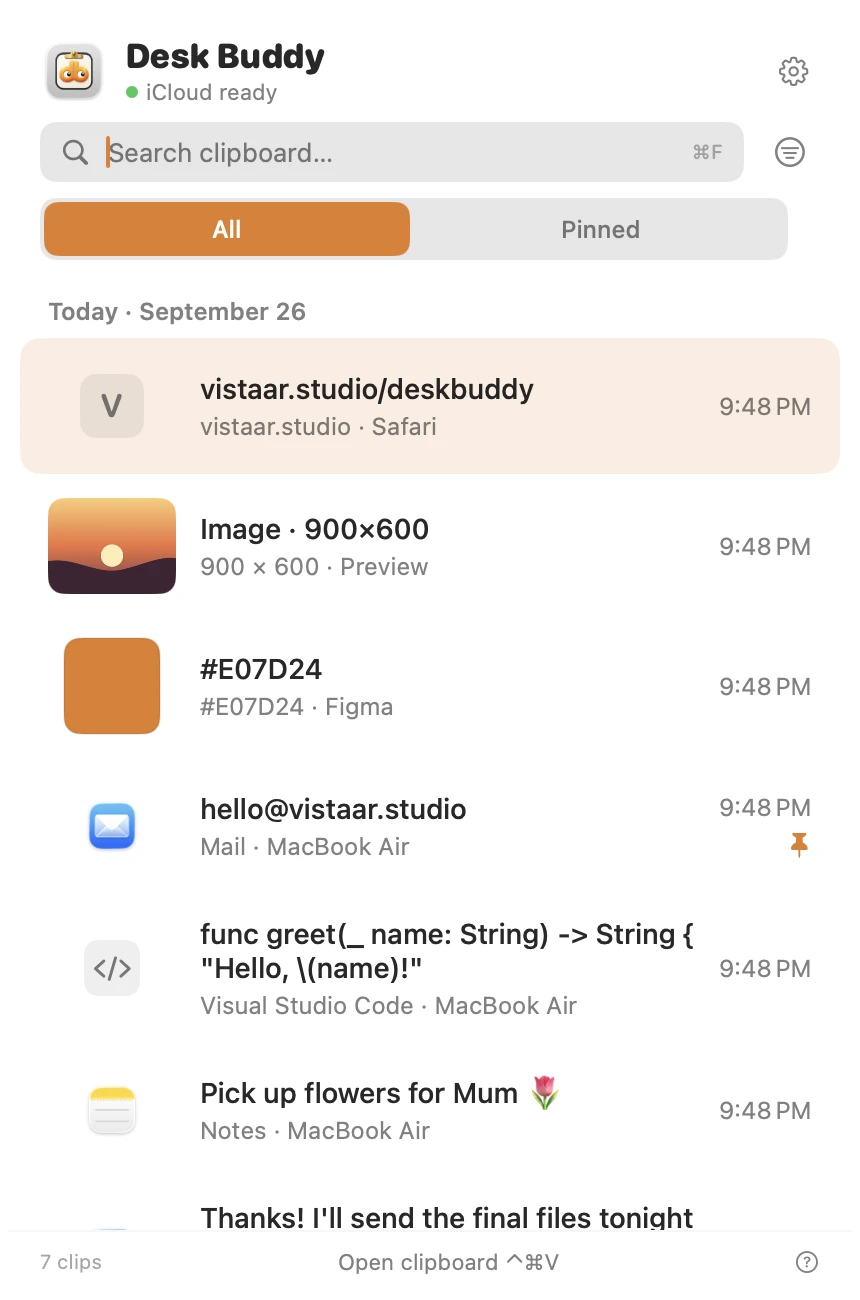
We make this app, so read this part with that in mind. The built-in ways above are enough to copy text from a video now and then. Desk Buddy helps if you do it a lot, for example while working through a long tutorial or lecture, because it skips the Preview step and keeps every snippet you grab.
- Copy Text from Screen (in Desk Buddy Complete). Press ⌃ ⌘ 2 and drag a box over anything on screen, including a paused video, a shared screen in a call or a slide. The recognised text goes straight onto your clipboard and into your history. QR codes and barcodes in the box are read too. It runs on your Mac with Apple's Vision framework and needs the Screen Recording permission once.
- Clipboard history. Text, links, images, colours, code and files you copy are kept, so the five commands you grabbed from a tutorial are all still there. Press ⌃ ⌘ V to open the history and click one to paste it.
- Search, pin and boards, and it shows which app or website each copy came from.
It reads the frame you box, once; it doesn't watch or capture video automatically.
Desk Buddy is available now from vistaar.studio as Desk Buddy Complete: $5 for 1 Mac (₹499 in India), paid up front, instant download. A Mac App Store edition is coming soon: a free download with a 7-day free trial, then a $9.99 in-app unlock. It needs macOS 14 or later. Meet Desk Buddy →
FAQ
Can you copy text from a video on a Mac?
Yes. Pause the video, drag across the words and press ⌘ C (Live Text, macOS Ventura and later). In Photos, use the Live Text button and Copy All. Anywhere else, screenshot to the clipboard and copy from Preview.
How do I copy text from a YouTube video on a Mac?
Pause it. In Safari, try selecting the text on the frame. In any browser, press ⌃ ⇧ ⌘ 4, then Preview › File › New from Clipboard and copy. For spoken words, use Show transcript.
Why can't I select text in a paused video on my Mac?
Check Live Text in Language & Region, make sure the video is paused, and pick a sharp frame. Some apps and sites don't support it; the screenshot method always works.
Can I copy text from a shared screen in Zoom, Teams or Google Meet?
Yes, with the screenshot method. Ask the presenter first if it's confidential.
Is the copied text formatted?
No, it's plain text. Line breaks may follow the screen, so tidy them after pasting.
Does copying text from a video need the internet?
No. Recognition happens on your Mac. Translating or looking up the text may need a connection.