Guides › Clipboard on Mac
How to get back something you copied on Mac
Updated 6 November 2026 · by Vistaar Studio
Short answer: the Mac clipboard holds one thing at a time, so a new copy replaces the old one. On macOS Tahoe 26 or later, press ⌘ Space, then ⌘ 4 to open Spotlight's clipboard history and pick the older copy. If you cut the text, go back to that app and press ⌘ Z.
Find your situation below. We tested the clipboard behaviour on a Mac running macOS Tahoe 26.2 and checked the rest against Apple's support pages.
| What happened | Best way back |
|---|---|
| You copied something else over it | Spotlight clipboard history (Tahoe 26+), or copy it again from the source |
| You cut text, then copied something else | ⌘ Z in the app you cut from |
| You restarted or logged out before pasting | Spotlight history may help; otherwise go back to the source |
| You closed the tab or window it came from | ⇧ ⌘ T in Safari |
| The document itself changed since | File › Revert To › Browse All Versions |
| You copied a file to move it, then copied something else | Nothing to fix: the file never left its folder |
Why the old copy disappears
The clipboard is a single slot. You can see this in Terminal: run echo first | pbcopy, then echo second | pbcopy, then pbpaste. You get back only "second". The first copy is gone from the clipboard. It's still wherever you copied it from, though, which is why most of the fixes below send you back to the source.
1. You copied something else over it
If your Mac runs macOS Tahoe 26 or later, Spotlight keeps a list of recent copies:
- Press ⌘ Space to open Spotlight, then press ⌘ 4. (You can also click the Clipboard button next to the search field.)
- The first time, macOS may ask whether to allow clipboard results. Click Allow.
- Scroll the list, or type a word you remember from the copy to narrow it down.
- Select the item and press ⌘ C, or click the copy button to its right. It's now back on your clipboard.
- Click where you want it and press ⌘ V.
A few limits are worth knowing:
- How far back: 8 hours by default. Since macOS 26.1 you can choose 30 minutes, 8 hours or 7 days in System Settings › Spotlight. Anything older than the setting has already dropped off.
- What it keeps: text (with formatting stripped, so bold and links come back as plain text), images and files copied in the Finder.
- What it skips: passwords from Apple's Passwords app, very long text (roughly 16,000 characters or more), objects like shapes and tables from Pages, Keynote and Numbers, and copies that arrived from your iPhone or iPad through Universal Clipboard. Apple doesn't publish a full list, so these come from independent testing by Mac sites such as MacMost.
- It has to be on: if Results from Clipboard is turned off in System Settings › Spotlight, or someone chose Clear Clipboard History, there's nothing to recover.
On macOS Sequoia or older there's no built-in history. Go back to the email, page or document you copied from and copy it again. Our clipboard history guide goes deeper into searching the list.
2. You cut text, then copied something else
This one looks scary but is usually fine. When you cut with ⌘ X, the app records it as an editing step, just like typing. So:
- Switch back to the app and document you cut the text from.
- Press ⌘ Z (or choose Edit › Undo). The cut text reappears where it was.
- Typed more since? Keep pressing ⌘ Z until it's back. You'll undo your newer edits too, so copy the recovered text first, then press ⇧ ⌘ Z to redo your later work.
Undo history lives inside each open document. If you closed the document or quit the app, it's usually gone. Try the versions trick below instead. On Tahoe, the cut text should also be in Spotlight's clipboard history, since a cut puts it on the clipboard just like a copy.
3. You restarted or logged out before pasting
Restarting or logging out empties the clipboard. On Tahoe, open Spotlight's clipboard history anyway (⌘ Space, ⌘ 4). Apple doesn't say whether the list survives a restart, and we haven't tested it, so treat anything you find there as a bonus. If it's empty, go back to the source.
4. Go back to the source
If no history saved it, the original is usually still somewhere you can reach:
- A closed Safari tab or window: press ⇧ ⌘ T to reopen the last one you closed. The History menu also lists pages from earlier. Text you'd typed into a web form may or may not come back with the page, depending on the site, so don't count on it.
- A document you've edited since: in apps that save versions, such as TextEdit, Pages, Keynote, Numbers and Preview, choose File › Revert To › Browse All Versions. Click the tick marks along the timeline to find an older version, select the text you need and copy it.
- Terminal: output you copied is usually still in the window's scrollback. Scroll up, or press ⌘ F to search, and copy it again. Once you close the window, it's gone.
5. You copied a file to move it, then copied something else
Relax: nothing was deleted. In the Finder, moving a file is a copy (⌘ C) and then a paste with ⌥ ⌘ V in the new folder. Until that paste happens, the file stays exactly where it was. If you copied something else in between, just select the file again, press ⌘ C, open the destination and press ⌥ ⌘ V.
On Tahoe, copied Finder files also show up in Spotlight's clipboard history. Click the file's arrow there to make it the current clipboard, then press ⌥ ⌘ V in the new folder to move it. More in how to cut and paste files on a Mac.
6. Something you copied on your iPhone
Universal Clipboard passes your latest iPhone or iPad copy to your Mac. Apple says it stays there "briefly, or until you replace it by copying something else on either device", and it isn't added to Spotlight's history. If it's gone, copy it again on the iPhone. If it never arrived, check that both devices use the same Apple Account, have Wi-Fi and Bluetooth on, have Handoff turned on, and are near each other. Copy and paste not working on Mac covers the other usual causes.
So it doesn't happen again
The honest fix is a clipboard history that's always running. On Tahoe, Spotlight's is free: consider setting it to 7 days in System Settings › Spotlight, unless you copy a lot of sensitive text, in which case a shorter time is safer. You can always wipe it with Clear Clipboard History, as shown in how to clear the clipboard on Mac.
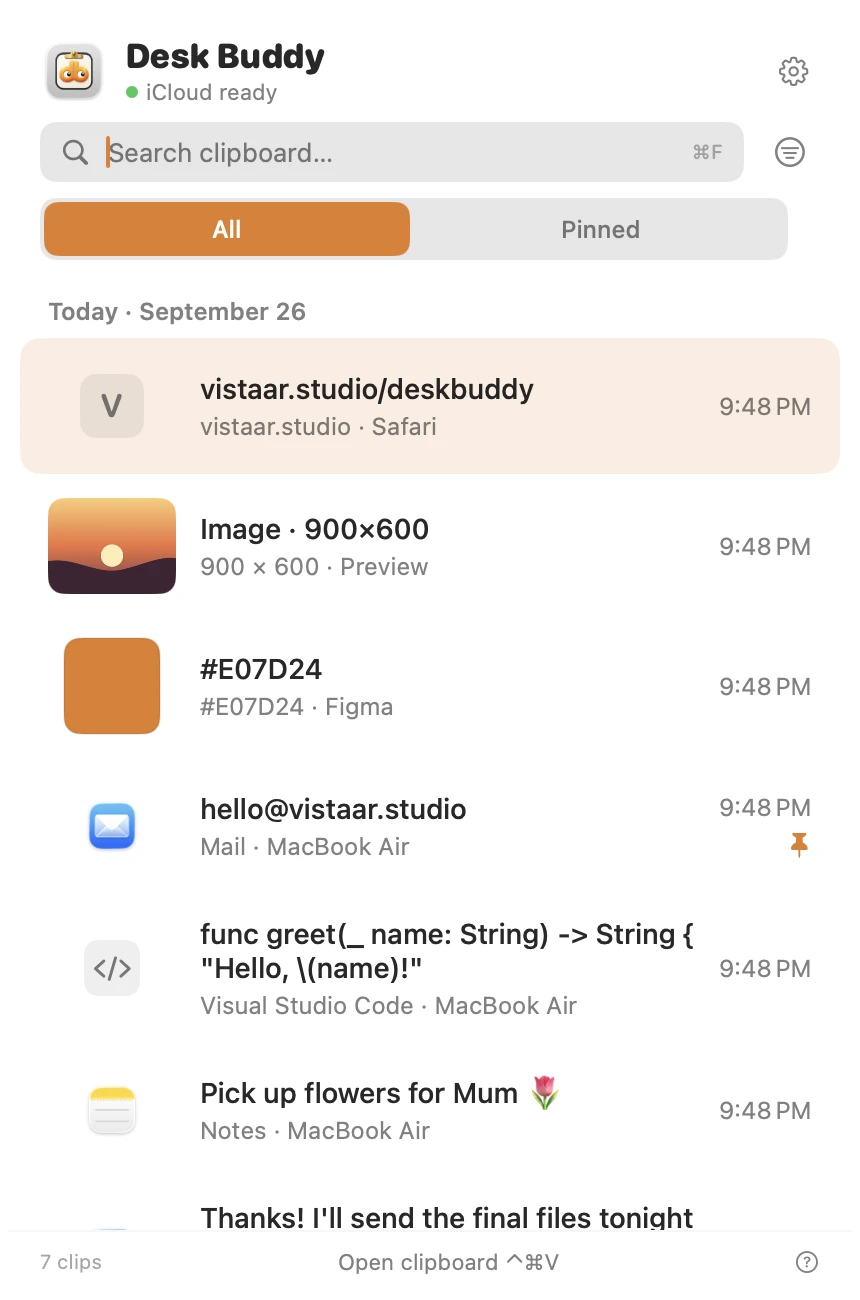
If you want more than Spotlight gives you, such as pins, boards and a source label on each copy, a clipboard manager does the job. Desk Buddy is ours, so read this knowing that. It keeps a history of text, links, images, colours, code and files, with search, pins and boards, and shows which app or website each copy came from. Press ⌃ ⌘ V (or click the menu-bar icon, or Buddy, the little character at the edge of your screen) and click a copy to paste it where you were typing. Password managers are left out of its history, and copies other apps mark as private are never saved. To compare options, see the best clipboard managers for Mac.
FAQ
Can I get back something I copied before my last copy?
Not from the clipboard itself, which holds one item. On Tahoe 26 or later, press ⌘ Space, then ⌘ 4 for Spotlight's clipboard history (8 hours by default). On older versions, copy it again from the source.
I cut text and then copied something else. Is it lost?
Usually not. Go back to the app you cut it from and press ⌘ Z. The text returns to the document, ready to copy again.
Is copied text still there after a restart?
No, restarting or logging out empties the clipboard. On Tahoe, check Spotlight's clipboard history; Apple doesn't say whether it survives a restart.
Is there an "undo copy" on Mac?
No. ⌘ Z undoes edits like a cut or paste, but doesn't bring back the previous clipboard. For that you need clipboard history.
I copied a file to move it but never pasted. Is it gone?
No. Copying never removes a file. It moves only when you press ⌥ ⌘ V, so it's still in its original folder.
Why isn't my iPhone copy in the Mac's clipboard history?
Universal Clipboard copies stay available only briefly and aren't saved to Spotlight's history. Copy it again on the iPhone.
Desk Buddy is available now from vistaar.studio as Desk Buddy Complete: $5 for 1 Mac (₹499 in India), paid up front, instant download. A Mac App Store edition is coming soon: a free download with a 7-day free trial, then a $9.99 in-app unlock. Meet Desk Buddy →