Guides › Clipboard on Mac
Copy and paste keyboard shortcuts on Mac: the full cheat sheet
Updated 4 November 2026 · by Vistaar Studio
Short answer: ⌘ C copies, ⌘ X cuts and ⌘ V pastes. The Command key (⌘) is the one right next to the space bar, on both sides. Pasted the wrong thing? ⌘ Z undoes it.
That covers most days, but a few extra shortcuts save real time: pasting plain text, moving files, copying a screenshot without saving it, and getting back something you copied an hour ago. Here they are, grouped. We checked each one against Apple's Mac keyboard shortcuts page and on a Mac running macOS Tahoe 26.2.
A quick key guide: ⌘ Command, ⌥ Option (also marked Alt), ⇧ Shift, ⌃ Control.
The basics
These work in almost every app.
| Shortcut | What it does |
|---|---|
| ⌘ C | Copy the selected text or item to the clipboard |
| ⌘ X | Cut: remove the selection and put it on the clipboard |
| ⌘ V | Paste what's on the clipboard |
| ⌥ ⇧ ⌘ V | Paste and Match Style: paste the words in the font and size of the place you're pasting into |
| ⌘ Z | Undo the last action, including a paste |
| ⇧ ⌘ Z | Redo what you just undid |
| ⌘ A | Select all, ready to copy |
Paste and Match Style is the one most people wish they'd learned sooner. If text keeps arriving in a strange font or with a grey background, see how to paste without formatting on Mac, which also shows how to make ⌘ V always paste plain text. Google Docs uses its own shortcut for this, ⌘ ⇧ V.
Files in the Finder
One twist: ⌘ X doesn't cut a file. You copy first and decide whether it's a copy or a move when you paste.
| Shortcut | What it does |
|---|---|
| ⌘ C, then ⌘ V | Copy a file and paste a copy in another folder |
| ⌘ C, then ⌥ ⌘ V | Move the file to the folder you're in (the Mac's "cut and paste") |
| ⌘ D | Duplicate the selected files in the same folder |
| ⌥ ⌘ C | Copy the file's full path (for example /Users/you/Documents/report.pdf) as text |
In the Edit menu, hold ⌥ and Paste Item turns into Move Item Here, so you can do the same thing by mouse. More in how to cut and paste files on a Mac and how to copy a file path on Mac.
Text editing extras
| Shortcut | What it does |
|---|---|
| ⌥ ⌘ C | Copy Style: copy the formatting (font, size, colour) of the selected text, not the words |
| ⌥ ⌘ V | Paste Style: apply that copied formatting to other selected text |
| ⌃ K | Cut the selected text, or everything from the cursor to the end of the paragraph |
| ⌃ Y | Paste what ⌃ K cut |
Copy Style and Paste Style only work in apps that offer them; if you're not sure, look in the app's Format menu for the commands and their shortcuts. In apps that don't, the same keys may do something else: in the Finder, ⌥ ⌘ C copies a path and ⌥ ⌘ V moves files.
⌃ K and ⌃ Y are an old pair (Emacs users call them "kill" and "yank"). They use a separate clipboard that only the app you cut from can see, so they don't replace what you copied with ⌘ C.
Screenshots straight to the clipboard
Add ⌃ Control to the usual screenshot keys and the picture is copied instead of saved as a file on the desktop. Then paste it with ⌘ V.
| Shortcut | What it copies |
|---|---|
| ⌃ ⇧ ⌘ 3 | The whole screen |
| ⌃ ⇧ ⌘ 4, then drag | The part of the screen you drag over |
| ⌃ ⇧ ⌘ 4, Space, then click | One window |
To make the clipboard the default for every screenshot, press ⇧ ⌘ 5, click Options and choose Clipboard under Save to. The full walkthrough is in how to copy and paste a screenshot on Mac.
Clipboard history (macOS Tahoe and later)
For years a Mac only remembered the last thing you copied. Since macOS Tahoe 26, Spotlight keeps a history:
| Shortcut | What it does |
|---|---|
| ⌘ Space, then ⌘ 4 | Open Spotlight's Clipboard view and see recent copies |
| Type a word | Search your copies |
| Select, then ⌘ C | Copy an older item again, ready for ⌘ V (or double-click it to paste) |
It keeps text (with the formatting stripped), images and screenshots, and files you copied in the Finder. Copies stay for 8 hours by default; from Tahoe 26.1 you can choose 30 minutes, 8 hours or 7 days in System Settings › Spotlight. To wipe it, click More beside the search field and choose Clear History. On Sequoia or older, the Finder's Edit › Show Clipboard shows only the current copy. See how to see clipboard history on Mac for what it leaves out.
Copy and paste with a mouse or trackpad
- Right-click menu: select something, then Control-click it (or click with two fingers on a trackpad, or right-click a mouse) and choose Copy or Cut. Control-click where you want it and choose Paste.
- Edit menu: Cut, Copy, Paste and Paste and Match Style are in the Edit menu at the top of the screen in nearly every app, with their shortcuts written beside them.
- Drag and drop: drag selected text or a file to where you want it. In the Finder, a drag within the same disk moves; to another disk, it copies.
How to change a copy or paste shortcut
You can give any menu command a different shortcut:
- Open System Settings › Keyboard and click Keyboard Shortcuts…
- Choose App Shortcuts in the sidebar and click +.
- Pick an app, or leave it on All Applications.
- In Menu title, type the command exactly as it appears in the menu, for example
Paste and Match Style. - Click the Keyboard shortcut box, press the keys you want, then click Done.
The screenshot shortcuts live in the same window under Screenshots, as the "Copy picture of…" entries. If a shortcut suddenly stops working, another app may have claimed the same keys; copy and paste not working on Mac walks through the other usual causes.
Using a Windows keyboard on a Mac
Apple's guidance is to press Alt instead of Option, and Ctrl or the Windows logo key instead of Command. Which one acts as Command depends on the keyboard; on many PC keyboards it's the Windows key, so copy becomes Windows-C rather than Ctrl-C. To swap them, open System Settings › Keyboard › Keyboard Shortcuts… › Modifier Keys, pick your PC keyboard from Select keyboard, then set Control to act as Command (and the reverse, if you like). The change applies only to that keyboard.
When you copy and paste all day
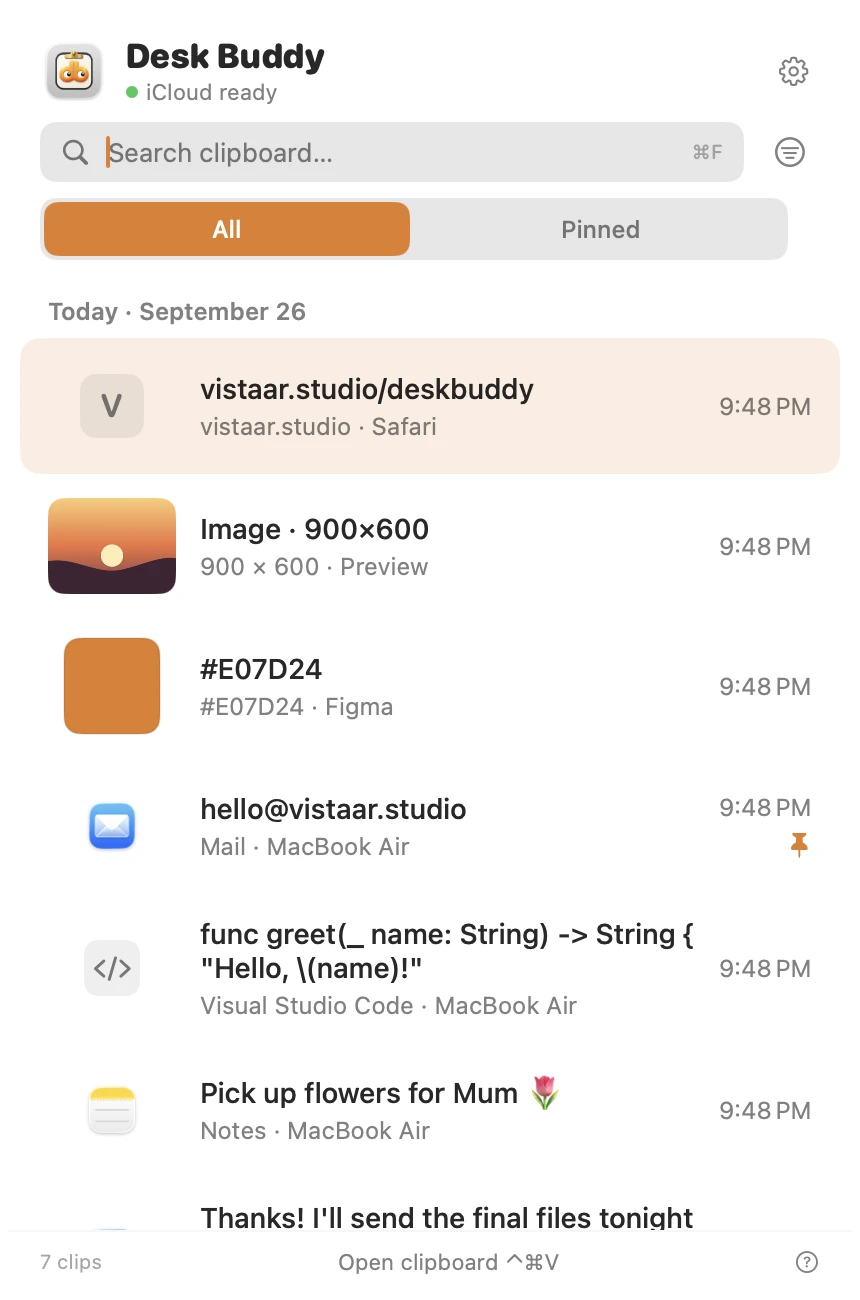
If you keep re-copying the same address, link, reply or colour code, a clipboard manager can hold them for you. Desk Buddy is ours, so read this knowing that. It keeps a history of text, links, images, colours, code and files, with search, pins and boards, and shows which app or website each copy came from. Press ⌃ ⌘ V (or click the menu-bar icon, or Buddy, the little character at the edge of your screen) and click a copy to paste it where you were typing. Desk Buddy Complete also adds Copy Text from Screen on ⌃ ⌘ 2.
FAQ
What is the copy and paste shortcut on a Mac?
⌘ C to copy, ⌘ X to cut, ⌘ V to paste. ⌘ Z undoes a paste you didn't mean.
How do I cut and paste a file on a Mac?
Select it, press ⌘ C, open the destination folder and press ⌥ ⌘ V. The file moves. A plain ⌘ V pastes a copy.
What is the shortcut to paste without formatting?
⌥ ⇧ ⌘ V (Paste and Match Style), also in the Edit menu. Google Docs uses ⌘ ⇧ V.
Does a Mac have a clipboard history shortcut?
On macOS Tahoe 26 or later: ⌘ Space, then ⌘ 4. It keeps text, images and Finder files for 8 hours by default (30 minutes to 7 days from 26.1). Older versions only remember the last copy.
Which keys do I use on a Windows keyboard?
Alt for Option, and Ctrl or the Windows key for Command (often the Windows key). Swap them in System Settings › Keyboard › Keyboard Shortcuts… › Modifier Keys if you prefer.
How do I copy and paste without the keyboard?
Control-click (or two-finger click) the selection and choose Copy, then Control-click where you want it and choose Paste. Or use the Edit menu.
Desk Buddy is available now from vistaar.studio as Desk Buddy Complete: $5 for 1 Mac (₹499 in India), paid up front, instant download. A Mac App Store edition is coming soon: a free download with a 7-day free trial, then a $9.99 in-app unlock. Meet Desk Buddy →