Guides › Clipboard
How to copy text you can't select on Mac
Updated 2 November 2026 · by Vistaar Studio
Short answer: press ⌃ ⇧ ⌘ 4 and drag a box around the text. That puts a picture of it on your clipboard. Open Preview, choose File › New from Clipboard, drag across the words and press ⌘ C. This is Live Text, and it's built into macOS, so it works on anything you can see: error boxes, buttons, installer windows, games, shared screens, locked web pages.
Some text on a Mac looks like ordinary words but is really a picture, or sits in a place that won't let you highlight it: the code in an error message you want to search for, a serial number in an installer, a label on a button, a paragraph on a website that turns off selection. Retyping it by hand is how typos sneak in. Below are the free ways that work, quickest first, and when each one makes sense.
First, try the obvious: it may be selectable after all
More text is selectable than people expect. A few things worth trying for two seconds before anything else:
- Error and alert boxes. In standard macOS alert boxes, the message text can be selected. Drag across it (it doesn't look like a text field, but it works) and press ⌘ C. We checked this on macOS 26. Apps that draw their own dialogs may not allow it.
- The same message somewhere else. Many errors are also written to the system log. Open Console (in Applications › Utilities), search for the app's name or a word from the error, and copy the line from there.
- Live Text first. Check that Live Text is switched on in System Settings › General › Language & Region. Every method below that reads text from a picture depends on it.
1. Any window at all: screenshot to the clipboard, copy in Preview
This is the method that never lets you down, because it doesn't care what the app is. If you can see the text, you can copy it.
- Make the text as large and sharp as you can (zoom in, or make the window bigger).
- Press ⌃ ⇧ ⌘ 4 and drag a box around the text. Holding Control sends the screenshot to the clipboard instead of saving a file to your desktop.
- Open Preview and choose File › New from Clipboard.
- Drag across the text in the new window and press ⌘ C. If the pointer won't select anything, choose Tools › Text Selection first. You can also Control-click a selection for more options.
Close the Preview window without saving when you're done. If you'd rather keep the screenshot as a file, use ⇧ ⌘ 4 without Control, then open the file in Preview and copy the text the same way. There's more on clipboard screenshots in our guide to copying a screenshot to the clipboard on Mac.
This covers most of the awkward cases:
- Buttons, menus and app labels, such as a setting name you want to paste into a support email.
- Installer and setup windows, including licence codes and long file paths.
- Games and full-screen apps. If the shortcut doesn't respond in full screen, switch the game to windowed mode or pause it first.
- Shared screens in Zoom, Teams or Google Meet. Ask the presenter first if the content is private.
2. Websites that won't let you select text
Some sites switch off text selection or right-click. Before you screenshot, try these in Safari:
- Reader. Choose View › Show Reader (or click the Reader button in the address bar, when the page has one). Reader rebuilds the article in a plain layout, and the site's selection blocking usually doesn't come along with it.
- Page source. Open Safari › Settings › Advanced and turn on Show features for web developers. A Develop menu appears; choose Develop › Show Page Source and use Find (⌘ F) to locate the words. This is handy for short bits such as a code or an address, less so for long articles.
- Text inside images on the page. If the "text" is really a picture, Safari can read it with Live Text: point at it, drag to select, and Control-click to copy.
Safari's developer tools can also turn off JavaScript for a page, which is often what blocks selection, but where that switch lives has moved between Safari versions, so we won't promise a menu path. If none of this works, method 1 copies whatever is on screen. Either way, the text still belongs to whoever wrote it, so quote and credit it properly.
3. Scanned PDFs, photos and paused videos
These have their own guides, so we'll keep it short here:
- A PDF where nothing highlights is usually a scan or is locked. See can't copy text from a PDF on Mac?
- For a photo or screenshot you already have, Live Text works right in Preview or Photos. See how to copy text from an image on Mac.
- For words on a paused video, see how to copy text from a video on Mac.
4. Make it one shortcut with the Shortcuts app
If you grab unselectable text several times a day, the Preview step gets old. The Shortcuts app can do it in one go:
- Open Shortcuts and click + to make a new shortcut.
- Add the Take Screenshot action and set it to let you pick an area. (Some macOS updates have broken this action for a while; if it stops working, method 1 always does.)
- Add Extract Text from Image, then Copy to Clipboard.
- In the shortcut's details, give it a keyboard shortcut or pin it to the menu bar.
Run it, drag around the text, and paste. If an action isn't where you expect, type its name into the search box in the action list; Apple moves things around a little between macOS versions.
When the copied text comes out wrong
| Problem | What helps |
|---|---|
| Nothing highlights in Preview | Choose Tools › Text Selection, and check Live Text is on in Language & Region. |
| Mixed-up letters (0/O, l/1, rn/m) | Zoom in before the screenshot. Bigger, sharper text reads more accurately. |
| Error codes or serial numbers | Compare them with the screen before you use them. One wrong character matters here. |
| Odd line breaks or spacing | Paste as plain text and tidy up. See pasting without formatting. |
| Text in another script isn't picked up | Live Text only reads its supported languages. A dedicated OCR app may cover more. |
Skip the Preview step: Desk Buddy
We make this app, so read this part with that in mind. The built-in ways above are enough for the odd error message. Desk Buddy is a clipboard manager, and its screen-reading tool helps if you copy unselectable text often.
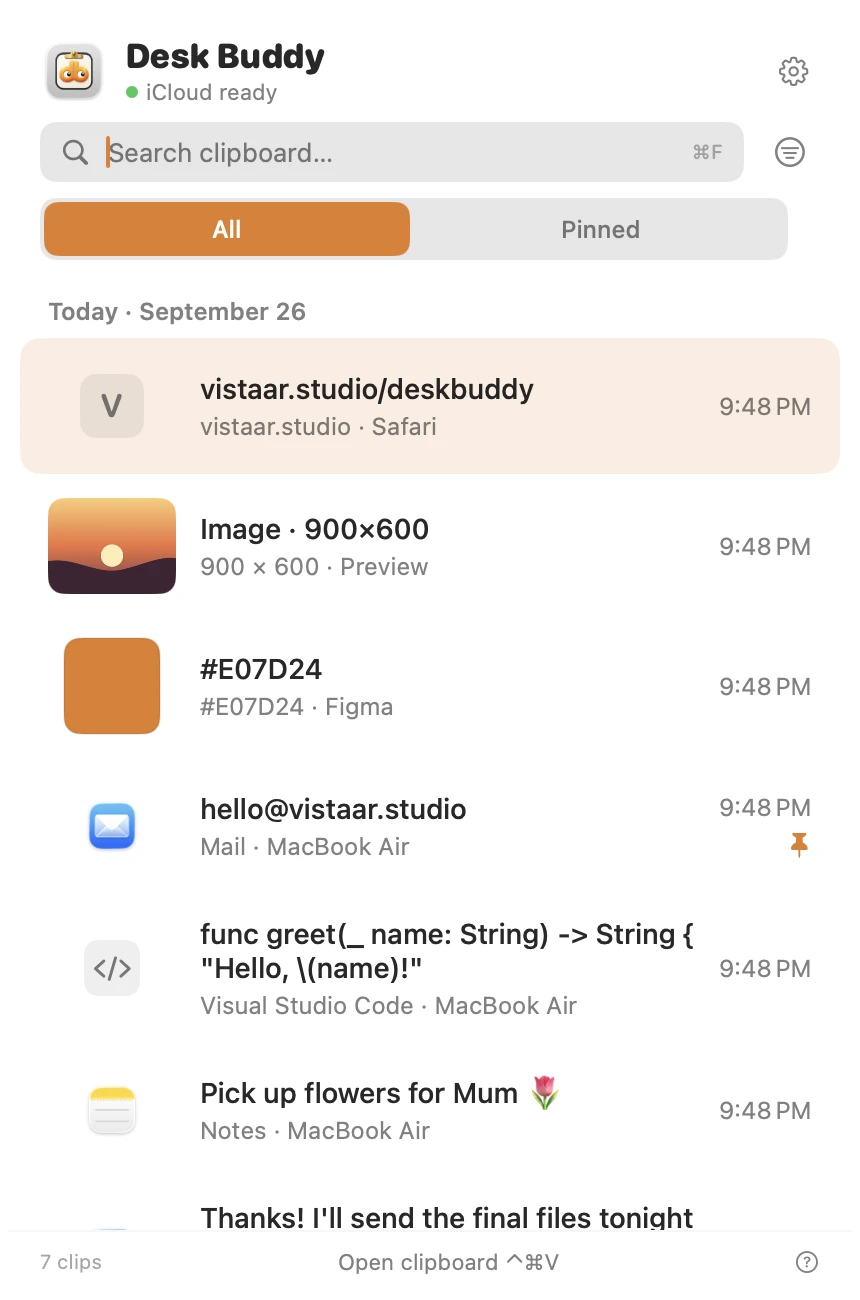
- Copy Text from Screen (in Desk Buddy Complete). Press ⌃ ⌘ 2 (or use the menu bar, Buddy's right-click menu, or the popover's Copy Text button) and drag a box over anything on screen: an error dialog, a PDF, a paused video, a Zoom or Meet share, an image. The recognised text goes straight onto your clipboard and into your history.
- QR codes and barcodes inside the box are read too.
- It runs on your Mac with Apple's Vision framework, with no network and no account. It reads 20+ languages, including Japanese, Korean and Chinese.
- It needs the macOS Screen Recording permission once, and macOS 14 or later.
Desk Buddy Complete is available now from vistaar.studio: $5 for 1 Mac, $8 for 2 or $10 for 3, paid up front, instant download. A Mac App Store edition is coming soon. Meet Desk Buddy →
FAQ
How do I copy text that I can't select on a Mac?
Press ⌃ ⇧ ⌘ 4, drag around the text, then in Preview choose File › New from Clipboard, select the words and press ⌘ C.
Can I copy the text of an error message on a Mac?
Often, yes. In standard macOS alert boxes you can drag across the message and copy it. If an app's own dialog won't allow that, screenshot it and copy the text in Preview.
How do I copy text from a website that blocks copying?
In Safari, try View › Show Reader, or Develop › Show Page Source once web developer features are on. Otherwise use the screenshot method, and credit the source when you reuse it.
Can I copy the text on a button or menu item?
Not directly. Screenshot the button to the clipboard and copy the label with Live Text in Preview.
Does Live Text work offline?
Yes. It recognises text on your Mac. It works on images from macOS Monterey and on paused video from macOS Ventura, and must be switched on in Language & Region.